
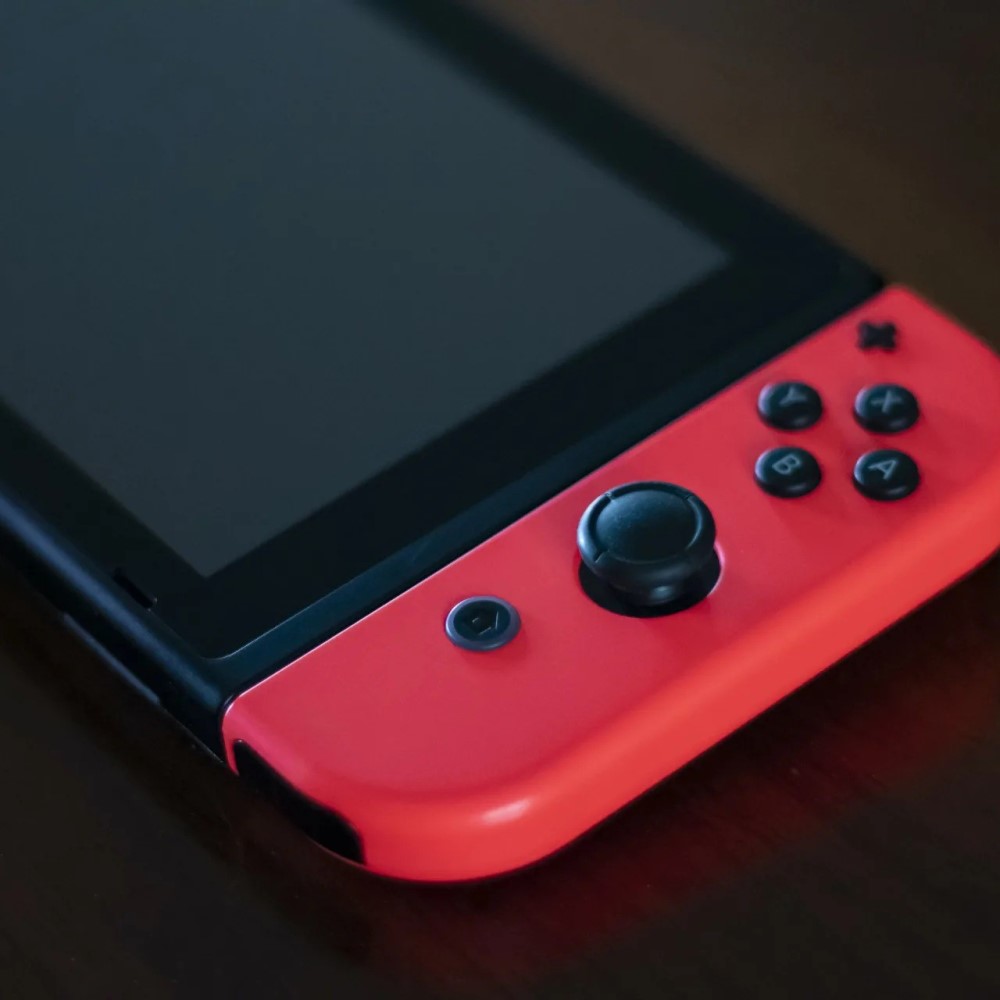
If your Nintendo Switch is frozen, unresponsive, or stuck on the startup screen, you may need to perform a hard reset. Knowing how to hard reset Nintendo Switch is an essential skill for every user. This method forces the console to shut down completely and restart from scratch. It clears temporary software glitches without deleting your saved games or personal data.
Unlike a factory reset, this process does not erase profiles, downloaded titles, or game progress. Instead, it works like rebooting a computer when it freezes. Whether you own the original model, the Switch Lite, or the OLED version, the steps are nearly identical. Learning how to hard reset Nintendo Switch helps maintain smooth performance. It also prevents unnecessary stress during gameplay interruptions.
 When You Should Consider a Hard Reset
Recognizing Common System Problems
A hard reset should only be used when normal controls fail. For example, if the screen remains frozen and pressing buttons does nothing, it’s time to act. Similarly, if the console won’t turn off using the power menu, a forced shutdown becomes necessary.
Another sign is a black or blue screen after turning on the device. Sometimes, the logo appears but the system doesn’t progress. In these cases, a hard reset can break the boot loop.
Games that crash repeatedly or apps that freeze mid-use may also benefit. However, try closing them through the home menu first. Hold the Home button and swipe up on the app card. If that fails, proceed with the reset.
Stuck downloads or failed updates often respond well to a hard reset. The system may have encountered a glitch during installation. Restarting clears the cache and allows a fresh attempt.
Always wait a few seconds before assuming failure. Some processes take longer than expected. But if no change occurs after 30 seconds, intervention is safe.
Using this method occasionally keeps your device running efficiently. It’s a reliable fix for many minor software hiccups.
Step-by-Step Instructions for All Models
Performing the Reset Correctly and Safely
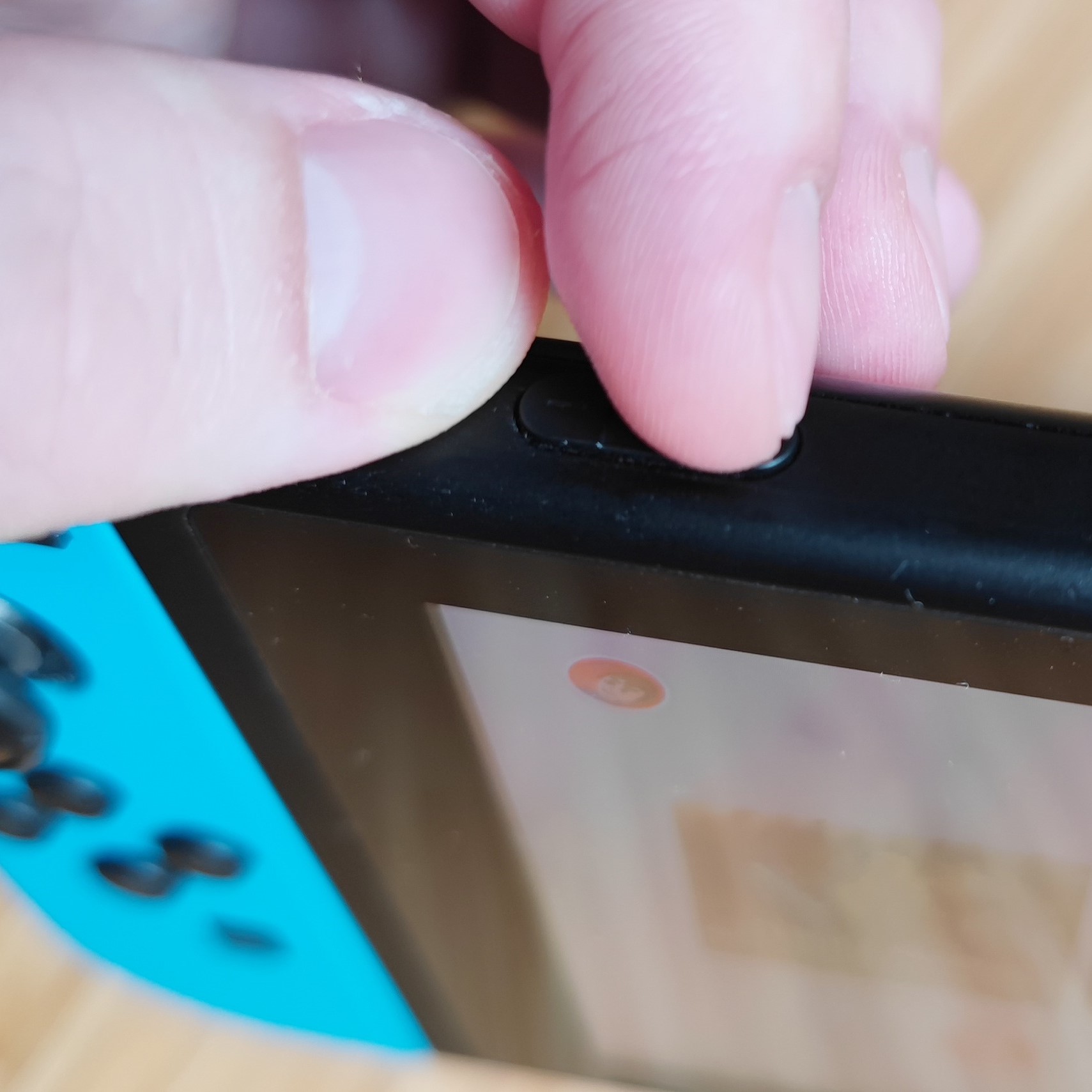
How to hard reset nintendo switch? To hard reset Nintendo Switch, press and hold the Power button. Locate it on the top edge of the device. On the original and OLED models, it’s centered. On the Switch Lite, it sits on the upper-right side.
Hold the button down for at least 12 seconds. Do not release it too early. You must wait until the screen goes completely black. The Nintendo logo may flicker once before disappearing.
After 12 seconds, release the button. Let the console sit powered off for another 10 to 15 seconds. This pause ensures all internal systems fully disengage. It prevents immediate reboots caused by residual power.
Next, press the Power button once—just a quick tap. The screen should light up. The Nintendo logo will appear within a few seconds. Allow the system to load normally.
Do not plug in controllers or accessories during startup. Wait until the home screen loads. Then, reconnect Joy-Cons or Pro Controllers as needed.
This method works whether the Switch is docked, in tabletop mode, or handheld. Always unplug from the dock first if applicable. Then follow the same steps.
Avoid using sharp objects or opening the case. Never force a reset during an update. Wait at least one hour if the screen shows a progress bar.
 Differences Between Hard Reset and Factory Reset
Understanding Which Option Fits Your Situation
It’s crucial to know the difference between a hard reset and a factory reset. A hard reset only restarts the system. It clears temporary memory and stops frozen processes. Your games, profiles, and settings remain untouched.
In contrast, a factory reset erases everything. It removes user accounts, downloaded titles, and custom preferences. Only choose this option when selling, gifting, or troubleshooting deep software issues.
You access a factory reset through System Settings. Go to “System” > “Initialize Console.” You’ll see two choices: one that deletes save data and one that keeps it. Choose carefully.
A hard reset requires no menus. It works even when the system won’t boot. Factory resets need partial functionality. They cannot run if the OS is completely corrupted.
Use a hard reset for daily glitches. Reserve factory resets for major problems. Examples include persistent crashes, login failures, or corrupted user profiles.
Also, back up saves before any full wipe. Enable cloud saves in System Settings under Data Management. Without backup, lost progress cannot be recovered.
Both tools are useful. But only use the stronger option when absolutely necessary.
Troubleshooting After the Reset
What to Do If Problems Continue
Sometimes, a hard reset doesn’t solve the issue. The screen stays dark. Or, the console boots but freezes again. In these cases, further action is required.
First, check the power source. Plug the Switch directly into a wall outlet. Avoid using power strips or third-party docks. Try a different USB-C cable if possible. Faulty chargers mimic system failure.
Inspect the microSD card. Remove it and restart the console. Corrupted files on the card can prevent proper booting. Reinsert it only after confirming the system works.
Update the system software. Connect to Wi-Fi and go to System Settings > System > Software Update. Outdated firmware causes instability. Always install the latest version.
Clear the system cache manually. Turn off the console. Hold Volume Up + Volume Down. While holding them, press and release the Power button. Release the volume buttons when the logo appears. This enters recovery mode.
From there, select “Repair Console.” This option refreshes the OS without deleting data.
If none of these work, the issue may be hardware-related. Contact Nintendo Support for repair options. Do not open the device yourself.
 Preventive Maintenance Tips
Keeping Your Switch Running Smoothly Long-Term
Regular care reduces the need to hard reset Nintendo Switch. First, close games properly. Return to the home screen before switching apps. Avoid removing game cards while playing.
Restart the console weekly. This clears background tasks and refreshes memory. Think of it like rebooting a smartphone. It maintains performance over time.
Keep software updated. Enable automatic updates in System Settings. New patches fix bugs, improve speed, and enhance security.
Avoid exposing the device to extreme temperatures. Don’t leave it in direct sunlight or cold cars. Overheating damages internal components. Use a cooling fan during long sessions.
Clean the screen and ports gently. Use a dry microfiber cloth. Compressed air removes dust from the kickstand and rail connectors.
Store game cards in protective cases. Scratched or dirty cards may not read correctly. Label them clearly to avoid confusion.
Use cloud saves regularly. Sync data after completing key levels. This protects your progress if future resets become necessary.
Using Recovery Mode for Advanced Fixes
Going Beyond a Simple Restart
When a hard reset doesn’t resolve the problem, recovery mode offers deeper solutions. This built-in tool gives access to advanced functions. To enter it, turn off the console completely.
Then, hold both the Volume Up and Volume Down buttons. While holding them, press and release the Power button. Keep holding the volume buttons until the recovery screen appears.
From here, you can choose several options. “Restore Default Settings” resets UI preferences without deleting data. “Repair Console” checks for corrupted system files. “Format System Memory” erases everything except save data.
These tools help fix issues like boot loops, corrupted updates, or missing icons. They require internet connection for some features. Make sure your Wi-Fi is stable before starting.
Never interrupt a recovery process. Doing so may brick the console. Wait patiently until completion. If unsure, consult Nintendo’s official support site.
Recovery mode complements a hard reset. Use it when simple fixes fail. Together, they cover most common software problems.
 Frequently Asked Questions
Answers to Common User Concerns
Will a hard reset delete my game progress? No. Saved data remains intact. Only temporary files clear during the process.
Can I hard reset while the Switch is docked? Yes. Unplug it first. Then, hold the Power button as usual.
What if the power button isn’t working? Try connecting to a PC via USB. Use recovery tools. Otherwise, contact support.
Is it safe to hard reset often? Yes. It’s a standard procedure. Just don’t do it mid-update.
Why won’t my Switch turn back on? Charge it for at least 30 minutes. Try a different charger.
Does hard reset fix Joy-Con drift? Not directly. Drift is a hardware issue. Recalibrate controllers instead.
Can I hard reset in tabletop mode? Yes. The method works in all modes. Docked, handheld, or tabletop—same steps apply.
How long should I wait between attempts? Wait 20 seconds after shutdown. This ensures full discharge of residual power.
 Final Thoughts on Device Care and Control
Why Mastering How to Hard Reset Nintendo Switch Matters
Every Nintendo Switch owner will face technical issues at some point. Knowing how to hard reset Nintendo Switch gives you control. You don’t need to panic over freezes or crashes. Simple steps restore function fast.
This skill builds confidence. It turns confusion into clarity. Instead of rushing to buy a new device, you troubleshoot calmly. Most issues have easy fixes.
Moreover, regular resets improve performance. They prevent slowdowns and app errors. Treat it like routine care.
Technology requires maintenance. A hard reset is one of the safest tools you have. It protects your experience and extends your console’s life.
By following this guide, you stay prepared. No matter the model or problem, you now know the solution. Mastering how to hard reset Nintendo Switch empowers smarter gaming.