
Restarting your Nintendo Switch can solve many common issues. Whether the screen freezes, apps stop responding, or the system becomes sluggish, a proper restart often helps. Knowing how to restart a Nintendo Switch is essential for all users, from casual gamers to daily players. This simple step restores normal function in most cases.
Moreover, regular restarts improve performance over time. They clear temporary files and reset background processes. As a result, games load faster and controls respond more smoothly. This guide covers every method, including soft resets, forced restarts, and troubleshooting tips. You’ll also learn when to use each technique safely.
 Standard Way to Restart Your Nintendo Switch
Using the Power Menu Correctly
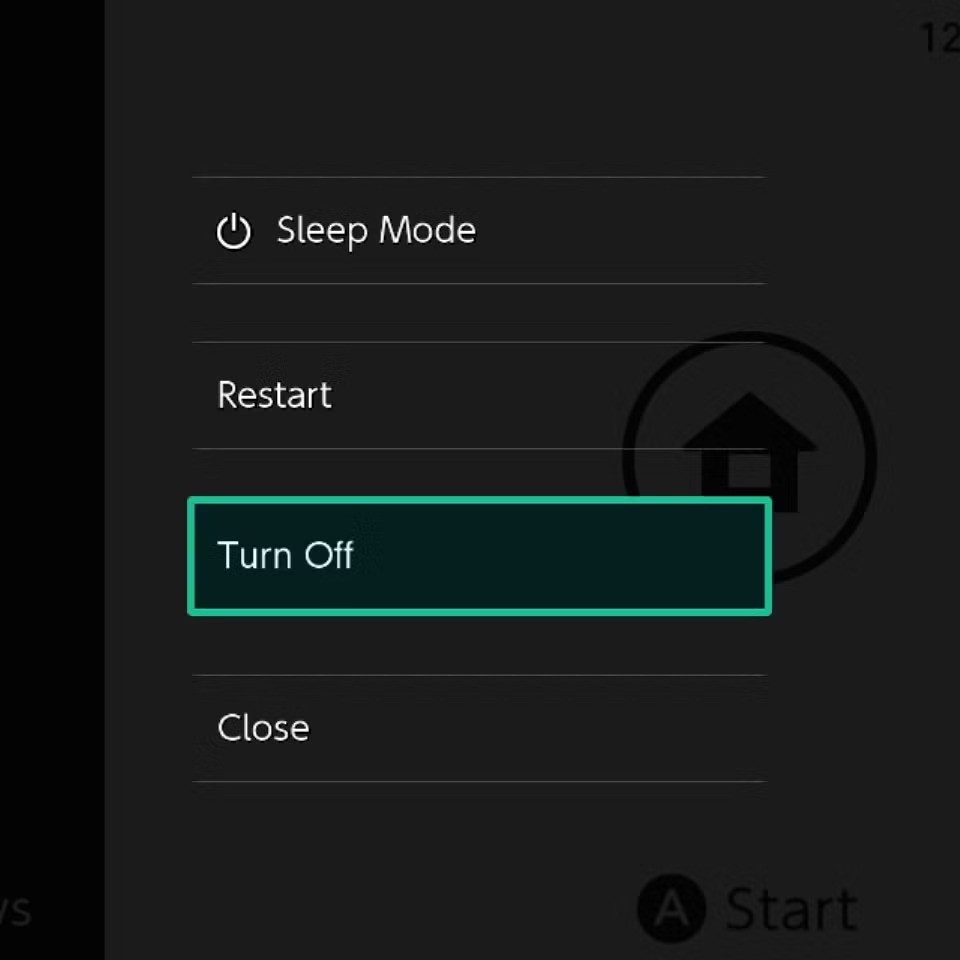
To restart your Nintendo Switch the standard way, press and hold the power button briefly. Then, release it quickly. A menu will appear on the screen with several options. Select “Power Options” using the joystick or touchscreen. Next, choose “Restart” from the list. The system will begin shutting down and then powering back on automatically.
This method works best when the console responds normally. It ensures a safe shutdown without risking data loss. Additionally, it closes all running applications properly. Always try this option first before attempting more aggressive steps.
Furthermore, the process takes less than a minute. After the screen goes black, wait a few seconds. The Nintendo logo will appear as the device boots up again. Once it does, you can resume gameplay immediately.
Transitioning to another method may be necessary if the screen remains unresponsive. However, never skip the standard restart unless needed. It maintains system stability and prevents corruption.
Forced Restart When the System Freezes
What to Do If Your Switch Won’t Respond
Sometimes, your Nintendo Switch may freeze completely. The screen stays still, buttons don’t work, and touch input fails. In these cases, you must perform a forced restart. This method bypasses the software and reboots the hardware directly.
Press and hold the power button for at least 12 seconds. Keep holding it even if nothing seems to happen. After a moment, the screen will go black. Wait five more seconds. Then, press the power button once to turn the console back on.
This technique interrupts the current state of the system. As a result, it clears any stuck processes causing the freeze. Although safe, it should not replace regular restarts. Use it only when the standard method fails.
Additionally, avoid doing this too frequently. Repeated forced restarts may wear out the power button over time. Also, unsaved progress in games could be lost. Therefore, save your game whenever possible before facing lag or glitches.
 Difference Between Restart and Shutdown
Why Restarting Is Not the Same as Turning Off
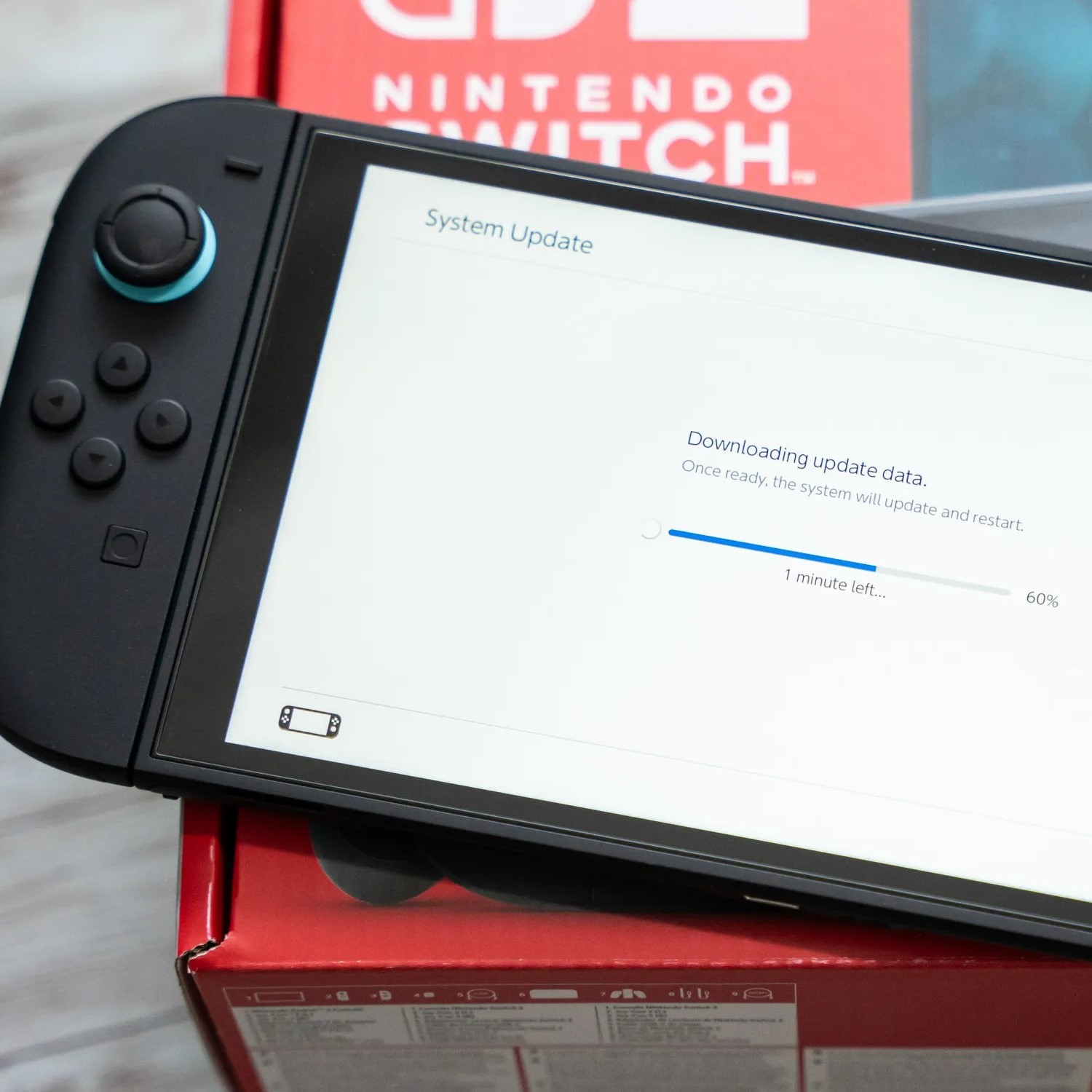
Many users think turning off the Switch is the same as restarting it. However, there is an important difference. A full shutdown stops all operations until you manually power it on again. A restart, on the other hand, turns the system off and then immediately back on.
Choosing to restart refreshes the operating system. It reloads core services and resets memory usage. This often fixes bugs that persist after a simple shutdown. For example, audio glitches or controller disconnects may disappear after a reboot.
Meanwhile, shutting down is ideal when storing the device or charging overnight. It conserves battery and prevents background activity. Yet, it doesn’t address underlying software issues like a restart does.
Therefore, always pick the correct option based on your goal. Need a quick fix? Choose restart. Planning to put it away? Go with shutdown. Understanding this distinction improves your experience.
Also, restarting helps apply minor updates silently installed in the background. These patches sometimes require a reboot to take effect. Without one, features might not work as expected.
Restarting While Docked vs Undocked
How Connection Mode Affects the Process
You can restart your Nintendo Switch whether it’s docked or undocked. The steps remain the same regardless of mode. However, the visual feedback differs slightly depending on your setup.
When docked, the screen appears on your TV. So, make sure the HDMI connection is secure. Also, confirm that your TV is set to the correct input source. Otherwise, you won’t see the restart process even though it’s working.
Undocked mode uses the built-in screen. This makes monitoring easier since everything happens on one device. There’s no need to manage cables or external displays. Simply follow the on-screen prompts as usual.
Moreover, performance during restart stays consistent across both modes. Games and apps behave the same after booting up. However, some users report faster loading times when docked due to stable power supply.
Nonetheless, never unplug the dock during a restart. Doing so may interrupt the process. Similarly, avoid removing the console from the dock until fully powered down. Patience ensures a smooth transition every time.
Always wait for the Nintendo logo to appear before interacting again. This confirms the system has completed its boot cycle.
 Troubleshooting Common Restart Issues
What to Do When Restart Doesn’t Work
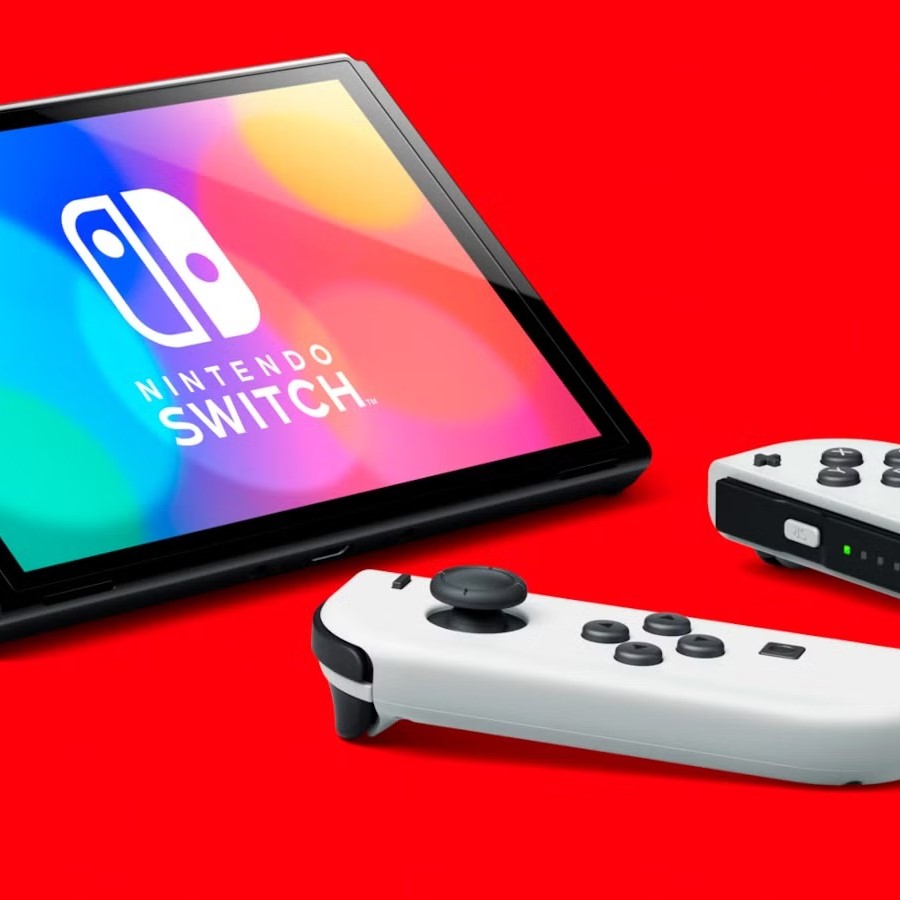
Even after following the correct steps, sometimes a restart fails. The screen remains black, or the logo loops endlessly. In such cases, further action is required. First, ensure the battery isn’t completely drained.
Plug the Switch into the charger for at least 30 minutes. Then, attempt a forced restart again. Low battery can prevent successful booting. Charging often resolves what seems like a system error.
If the problem continues, check the AC adapter and cable. Use the official Nintendo charger when possible. Third-party accessories may deliver unstable power. Replace damaged cords immediately.
Another issue is a corrupted user profile or system file. Try restarting in safe mode if available. Unfortunately, the Switch does not offer this feature officially. Instead, consider backing up data and performing a system update.
Also, remove any microSD card temporarily. Faulty cards can interfere with startup. Test the console without it. Reinsert only after confirming normal operation.
Contact Nintendo Support if none of these steps help. Hardware failure could be the cause. Early diagnosis prevents further damage.
Maintaining Performance with Regular Restarts
Building Healthy Gaming Habits
Regularly restarting your Nintendo Switch keeps it running smoothly. Over time, background tasks accumulate and consume resources. Memory leaks and app crashes become more likely without periodic refreshes.
Set a routine to restart at least once a week. Do this after finishing long gaming sessions. It only takes a minute but offers noticeable benefits. Games launch faster, and menus feel more responsive.
In addition, restarts prepare the system for updates. Many downloads install quietly in the background. They require a reboot to activate new features or security patches. Skipping restarts delays improvements.
Also, controllers reconnect properly after a fresh start. Drift issues or sync problems often vanish. Audio and video output stabilize as well. These small gains add up over time.
Encourage family members or roommates to follow the habit too. Shared devices benefit even more from maintenance. Everyone enjoys better performance.
Think of it like rebooting a smartphone. It’s a simple act with powerful results. Make how to restart a Nintendo Switch part of your regular care routine.
 Frequently Asked Questions (FAQ)
Can I restart my Switch while playing a game?
Yes. Just open the power menu and select restart. However, save your progress first. Unsaved data may be lost during the reboot.
Will restarting delete my games or saves?
No. Restarting does not erase data. Your games, screenshots, and save files remain intact.
What if the screen is frozen and I can’t access the menu?
Use a forced restart. Hold the power button for 12 seconds. Release it, then press again to turn it back on.
Is it safe to restart multiple times in a day?
Occasional restarts are fine. But doing it too often may stress the hardware. Stick to once per day unless troubleshooting.
Does restarting fix slow performance?
Often, yes. It clears memory and stops rogue processes. Combine it with closing unused apps for best results.
Can I restart while charging?
Absolutely. Being plugged in does not interfere. In fact, it ensures enough power during the process.
Why does my Switch take so long to restart?
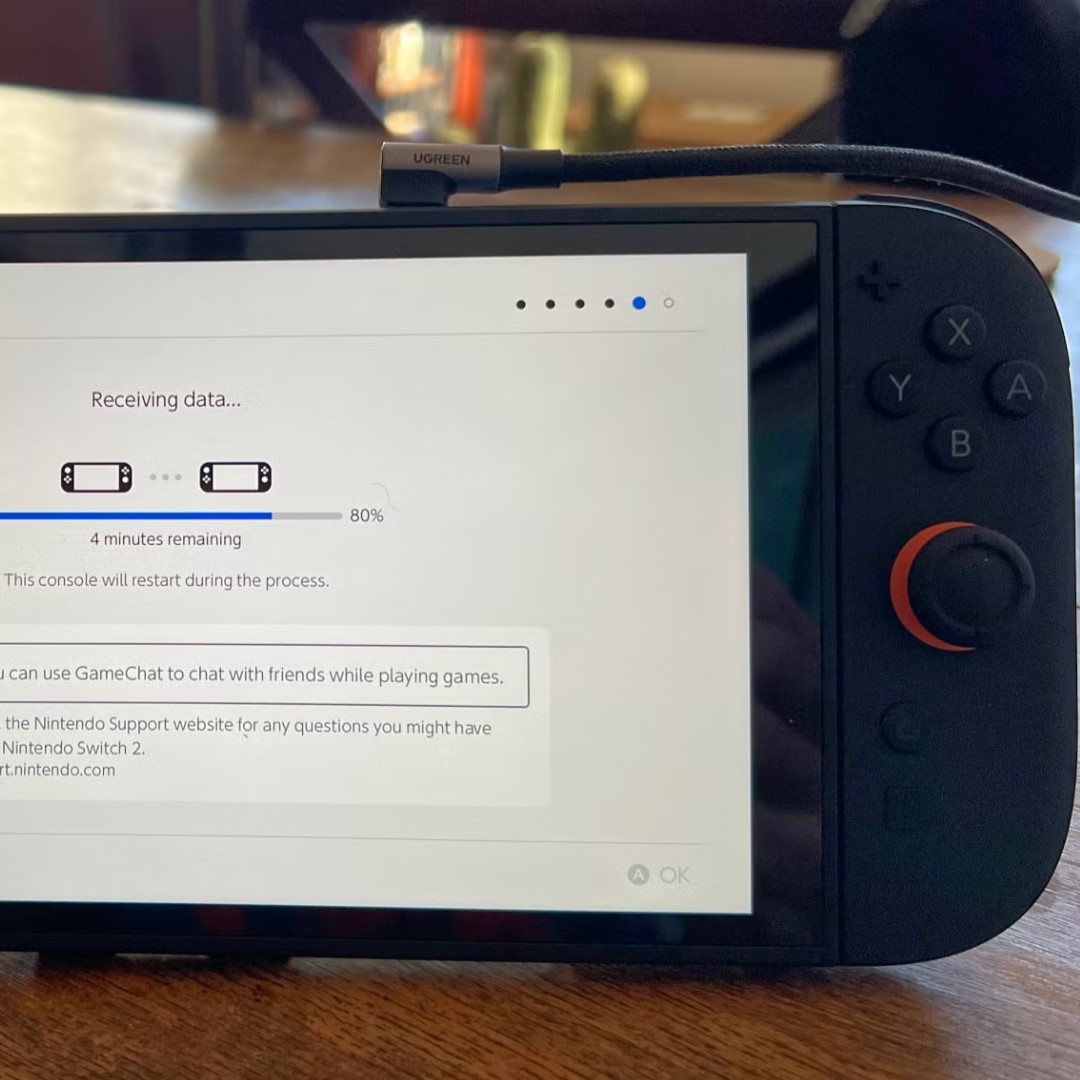
Delays may happen if updates are installing. Or, a corrupted file could slow boot time. Try a forced shutdown if it hangs too long.
 Summary
Knowing how to restart a Nintendo Switch is a vital skill for every owner. It solves freezes, improves speed, and supports system updates. Both standard and forced methods have their place. Use them wisely based on the situation.
Regular maintenance prevents bigger issues later. A quick weekly reboot enhances overall experience. It keeps games running well and reduces frustration. Simple habits lead to long-term reliability.
Remember, restarting is different from shutting down. One refreshes the system; the other just powers it off. Choose the right option for your needs. Always save your game first.
Whether docked or handheld, the process works the same. Just follow the steps carefully. Avoid cutting corners or rushing through. Safety and consistency matter.
Finally, if problems persist after multiple restarts, seek professional help. Sometimes, deeper issues require expert attention. But for everyday glitches, mastering how to restart a Nintendo Switch makes all the difference.