
Knowing how to turn off Nintendo Switch is essential for every user. Whether you’re a parent, casual gamer, or long-time player, understanding the correct shutdown process helps protect your device and preserve game progress. Turning it off properly avoids data loss, battery drain, and system errors. It also extends the life of your console.
Moreover, many people assume the Switch turns off automatically. While sleep mode activates after inactivity, it doesn’t fully power down. Learning how to turn off Nintendo Switch ensures you have full control over its operation. This guide covers all methods, safety tips, troubleshooting, and best practices.
 Why Properly Turning Off Your Nintendo Switch Matters
Shutting down your Nintendo Switch correctly prevents damage to the system. Leaving it in sleep mode for too long drains the battery slowly. Over time, this can reduce battery lifespan. A full power-off cycle helps maintain health.
It also protects your saved games. Unexpected shutdowns may corrupt save files. This is especially true during updates or downloads. Using the proper method reduces that risk.
Another benefit is energy efficiency. Even in standby mode, the Switch uses minimal power. If left unused for days, turning it off saves electricity. This is helpful during vacations or storage.
Additionally, restarting the system clears temporary memory. Glitches or slow performance often improve after a full reboot. Regular shutdowns keep the OS running smoothly.
Parents may want to enforce screen time limits. Teaching kids how to turn off Nintendo Switch promotes responsibility. It encourages good digital habits early.
Finally, when transporting the console, a powered-off state is safer. Moving it while active increases the chance of file errors. Always shut down before placing it in a case.
Preventing Battery Drain with Full Power-Off
The Nintendo Switch uses a lithium-ion battery. These batteries degrade faster when kept at extreme charge levels. Keeping it at 100% or 0% for long periods harms longevity.
Turning off the console completely stops power use. Sleep mode still allows background functions. For example, charging continues even when closed. But if stored for weeks, switch it off.
You should also avoid leaving it plugged in constantly. Once fully charged, unplug it or power down. This prevents overcharging stress on the battery.
If storing the Switch long-term, charge it to around 60%. Then power it off. Check every few months and recharge if needed. This preserves battery health.
Travelers benefit from knowing how to turn off Nintendo Switch. Airplane rules may require electronics to be off. Complying avoids issues at security or during flights.
Even daily users gain peace of mind. Knowing the battery isn’t draining overnight means longer play later. Good habits start with simple actions.
 Standard Method: Using the Power Menu
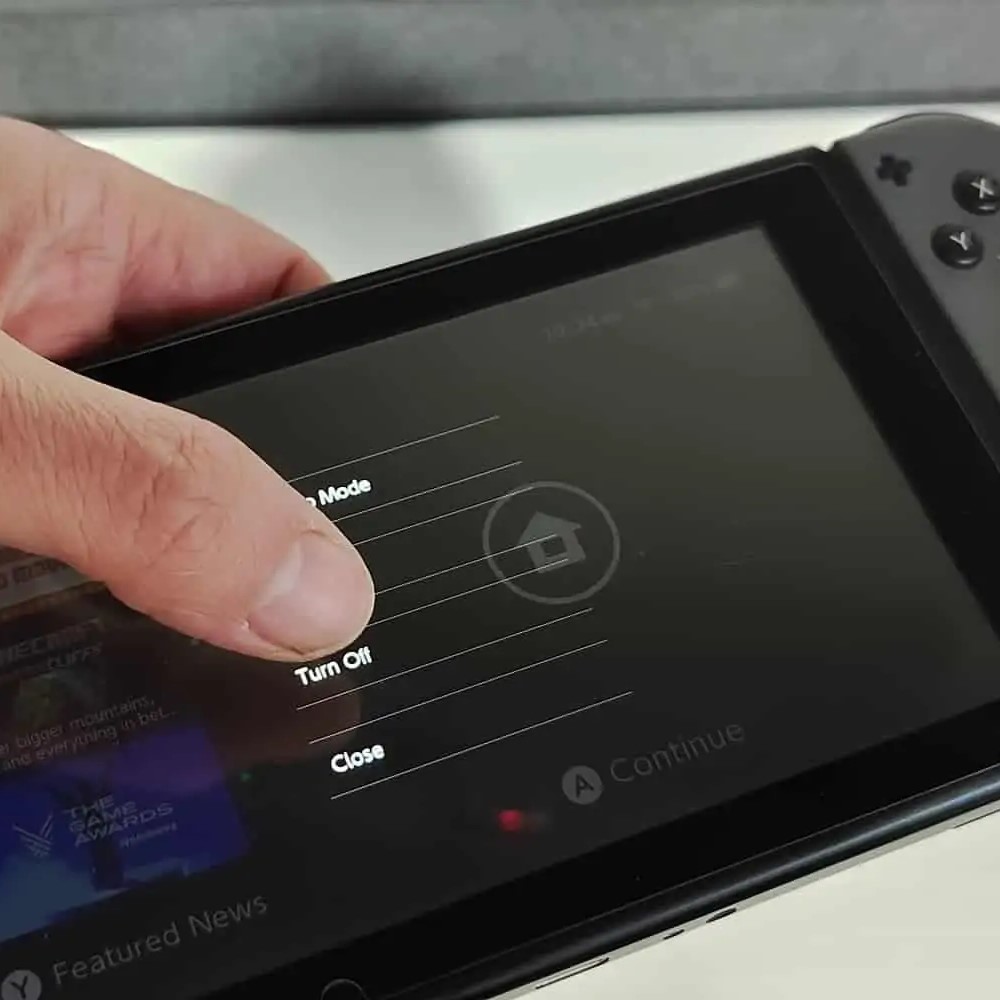
The safest way to turn off Nintendo Switch is through the home menu. First, press the Home button on the controller. This returns you to the main dashboard. Make sure no downloads or updates are running.
Next, locate the Power icon. It appears as a circle with a vertical line. Tap it using the touchscreen or cursor. A menu will pop up with several options.
Select “Power Options.” Another list appears. Choose “Turn Off.” Confirm by tapping “OK” when prompted. The screen will fade to black. The console powers down within seconds.
This method ensures all apps close properly. The system saves current states and logs out safely. It’s the recommended approach by Nintendo.
Always wait a few seconds before moving the device. Let the internal processes finish. Opening the case or removing cartridges too soon may cause issues.
Using the menu also lets you see what’s running. You can pause downloads if needed. This gives you control over timing and decisions.
Never hold the power button without reason. Doing so forces a shutdown. Only use it if the system freezes. Otherwise, stick to the menu method.
Alternative: Holding the Power Button
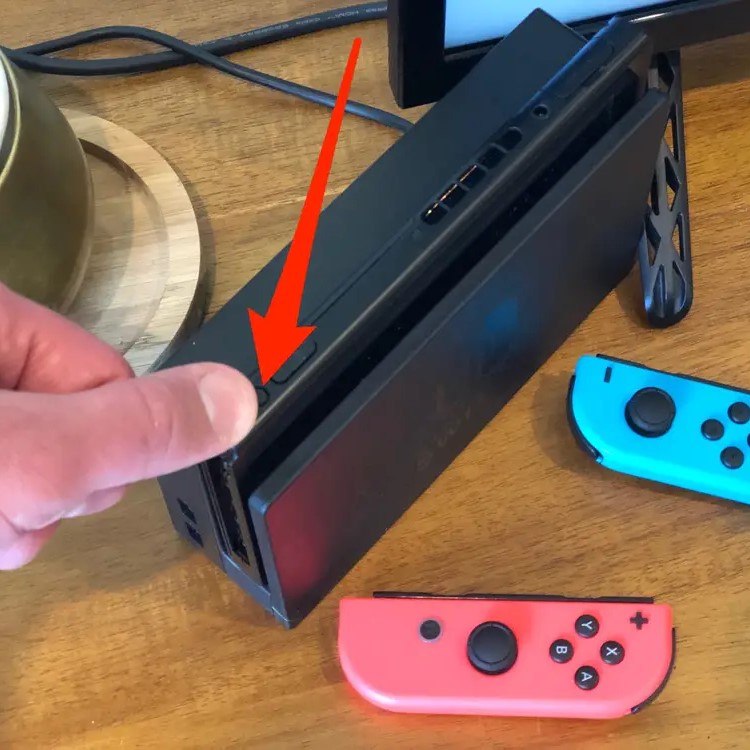
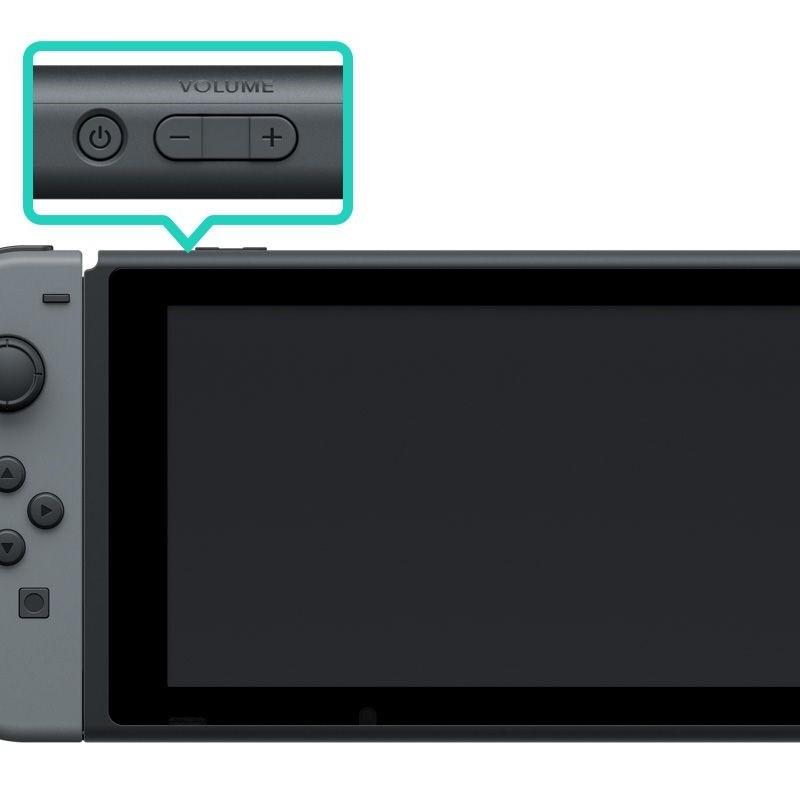
Sometimes, the standard menu isn’t accessible. Maybe the screen is frozen or unresponsive. In these cases, you can force a shutdown. Press and hold the Power button for 12 seconds.
Keep holding until the screen goes dark. The Switch will vibrate slightly when powering off. Release the button once the screen is black.
This method bypasses software. It cuts power directly. Use it only when necessary. Frequent forced shutdowns may harm the file system.
After turning it off, wait 30 seconds before restarting. This clears residual power. It also resets any stuck processes.
Once back on, check for error messages. The system may run a quick repair scan. If problems persist, back up your data and consider support.
Avoid pressing the button rapidly. Tapping it multiple times won’t turn it off. It may open sleep mode instead. Hold it steadily for best results.
This method works whether docked or handheld. The same 12-second rule applies. No extra steps are needed based on setup.
 Differences Between Sleep Mode and Powering Off
Many users confuse sleep mode with turning off. They look similar but function differently. Sleep mode pauses the system. It keeps your game loaded in memory.
To enter sleep mode, press the Power button once. A crescent moon icon appears. The screen shuts off. However, the system still runs quietly.
While asleep, the Switch charges if connected. It receives notifications like friend requests. Some games continue background tasks. This uses small amounts of power.
A full shutdown closes everything. No apps run. The processor stops. Zero energy is used beyond minimal battery maintenance.
Use sleep mode for short breaks. Stepping away for dinner? Put it to sleep. Want to resume quickly? This is ideal.
Use full power-off for long gaps. Going to bed? Traveling? Store it off. This protects data and battery.
You can wake from sleep by pressing any button. To restart after shutdown, hold the Power button for two seconds. The boot-up process takes longer than waking.
Understanding this difference improves your experience. It also helps explain why learning how to turn off Nintendo Switch matters.
When to Use Each Option
Choose sleep mode during active gaming sessions. Need to answer the door? Pause with one click. Resume instantly when back.
Also use it when switching between games. Avoid waiting for reloads. Keep your session alive while checking other apps.
Long flights or train rides suit sleep mode. Close the lid. Save battery while keeping your world intact. Reopen and jump right back in.
However, turn off the console when updating firmware. Large downloads complete better when undisturbed. A shutdown ensures stability.
Before cleaning the screen or ports, power down. This prevents accidental inputs. It also protects circuits from static or moisture.
When sharing the Switch with others, shut it off. This logs you out. Personal data stays private. Next user starts fresh.
Kids should learn both modes. Teach them to sleep it when pausing. Show them how to turn off Nintendo Switch at bedtime.
At night, always power down. Sleep mode still emits light. It may disturb sleep. Plus, it risks overheating under pillows or blankets.
Restarting vs. Turning Off
Restarting is different from shutting down. A restart turns the system off and then immediately back on. It clears memory and refreshes the OS.
To restart, go to Power Options. Select “Restart.” Confirm the action. The Switch will close and boot again automatically.
This fixes minor glitches. Apps that freeze or lag often work after a restart. It’s like rebooting a phone.
Use it when the system feels slow. Or if a game crashes repeatedly. Also try it when online features fail.
Turning off does not restart. It leaves the system inactive. You must manually turn it on later.
Restarting is safe. It follows normal shutdown procedures. No data loss occurs. All saves remain intact.
Do not force restart unless needed. Use the menu option first. Forced restarts (holding 12 seconds) are emergency tools.
Make restarting part of routine maintenance. Do it weekly. It keeps performance sharp and stable.
Troubleshooting Common Shutdown Issues
Sometimes, the Switch won’t turn off normally. The screen might freeze. Buttons don’t respond. In these cases, use the forced shutdown.
Hold the Power button for 12 seconds. Wait for the screen to go black. Let go. Wait another 30 seconds before turning it back on.
If the system turns off but won’t restart, check the battery. Plug in the charger. Let it charge for 15 minutes. Then try powering on.
If it boots into recovery mode, something went wrong. Follow on-screen instructions. Back up data if possible.
Some users report the Switch turning off randomly. This could mean low battery. Or it may indicate overheating. Clean vents. Avoid blocking airflow.
If sleep mode fails, reset settings. Go to System Settings > Sleep Mode. Ensure Auto-Sleep is enabled. Set times for idle periods.
For persistent problems, update the system. Outdated software causes bugs. Connect to Wi-Fi and install the latest patch.
When all else fails, contact Nintendo Support. Provide details about the issue. They offer remote help or repair services.
 Frequently Asked Questions
How long do I press the power button to turn it off? Hold for 12 seconds if forcing shutdown. Use the menu for normal turn-off.
Can I turn it off while docked? Yes. Same process works. It powers down whether connected or not.
Does turning it off delete my games? No. Games stay on internal storage or microSD card.
What happens if I don’t turn it off? It stays in sleep mode. Battery drains slowly. Risk of corruption is low but possible.
Should I turn it off every day? Not required. Use sleep mode for daily breaks. Shut down for long storage.
Can I charge it when it’s turned off? Yes. It charges faster when off. No power is used by the system.
Is it bad to leave it in sleep mode? Not harmful. But for long gaps, turn it off.
Why does it vibrate when turning off? Normal feedback. Confirms the command was accepted.
Do updates install when it’s off? Only if in sleep mode. Fully off means no background activity.
Can kids accidentally turn it off? Yes. But they can also restart. Teach them the correct way.
Will turning it off affect cloud saves? No. Saves sync when online. Manual sync is available in settings.
How do I know it’s fully off? Screen is black. No lights. Console is silent.
 Final Thoughts
Learning how to turn off Nintendo Switch is a simple but vital skill. It protects your investment, saves progress, and improves performance. Whether using the menu or forced shutdown, each method has its place.
Always prefer the proper shutdown through the home screen. Reserve long button presses for emergencies. Develop habits that extend your console’s life.
From gameplay to storage, the right power practice makes a difference. Share these tips with family members. Build confidence in using the device safely.
Ultimately, knowing how to turn off Nintendo Switch empowers you to enjoy gaming responsibly. Stay informed, follow best practices, and play with peace of mind.