
Many gamers ask, “Is it possible to see how to connect Nintendo Switch to laptop?” The answer is not simple. The Switch does not connect directly like a USB drive or webcam. However, you can still display your gameplay on your laptop screen. This setup helps streamers, content creators, and players who want a larger view.
To make this work, you need extra tools. A capture card is the most reliable method. It transfers video from the Switch to your laptop. Once set up, you can record, stream, or simply enjoy bigger visuals. Learning how to connect Nintendo Switch to laptop opens new possibilities.
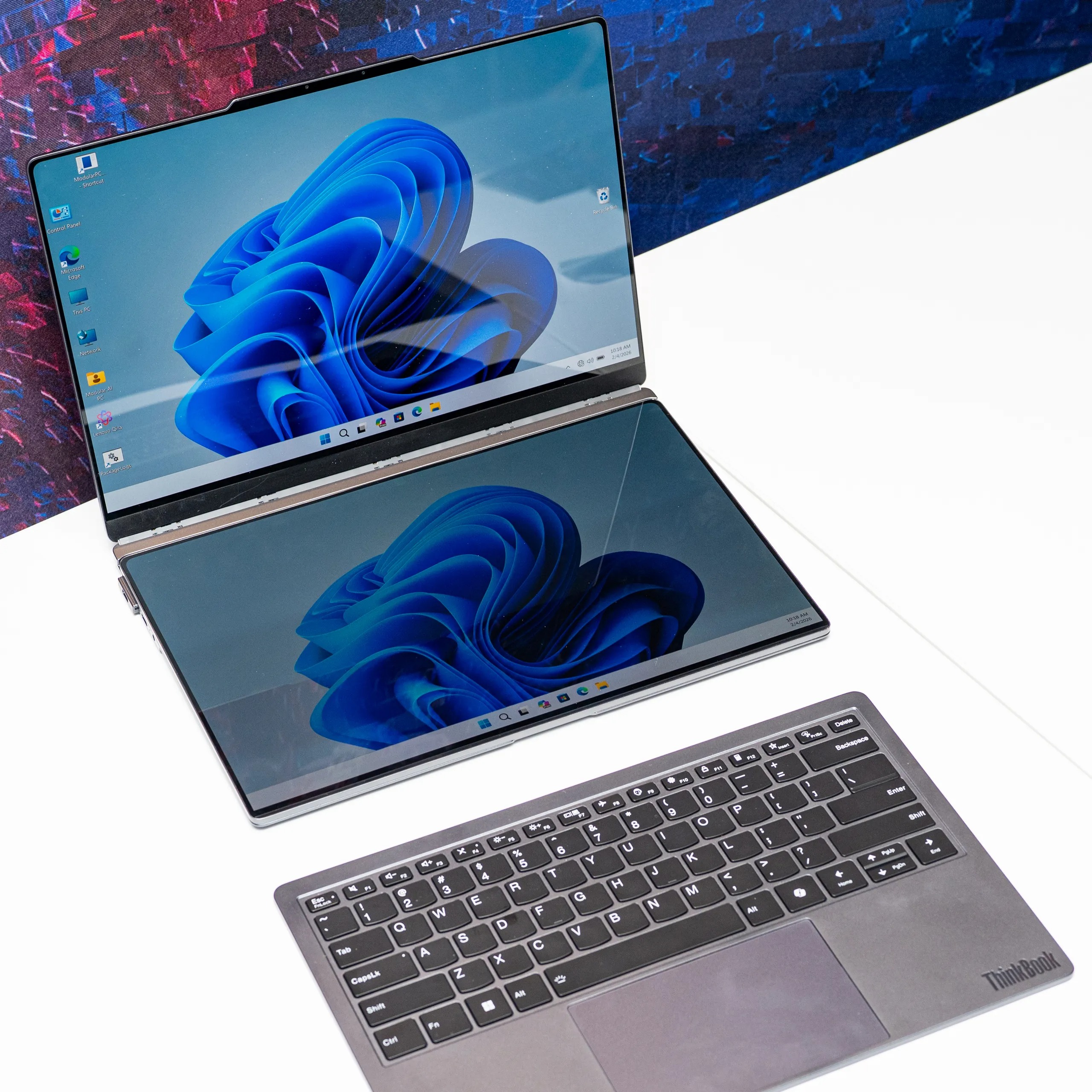 Why You Might Want to Connect Your Nintendo Switch to a Laptop
Practical Reasons Beyond Just Playing Games
There are several reasons why someone wants to know how to connect Nintendo Switch to laptop. One of the biggest is live streaming. Platforms like Twitch and YouTube require stable feeds. A laptop offers better software control than the Switch alone.
Another reason is recording high-quality gameplay. Built-in recordings on the Switch have limits. They cap at 30 seconds or compress heavily. With a laptop, you can save full-length HD videos.
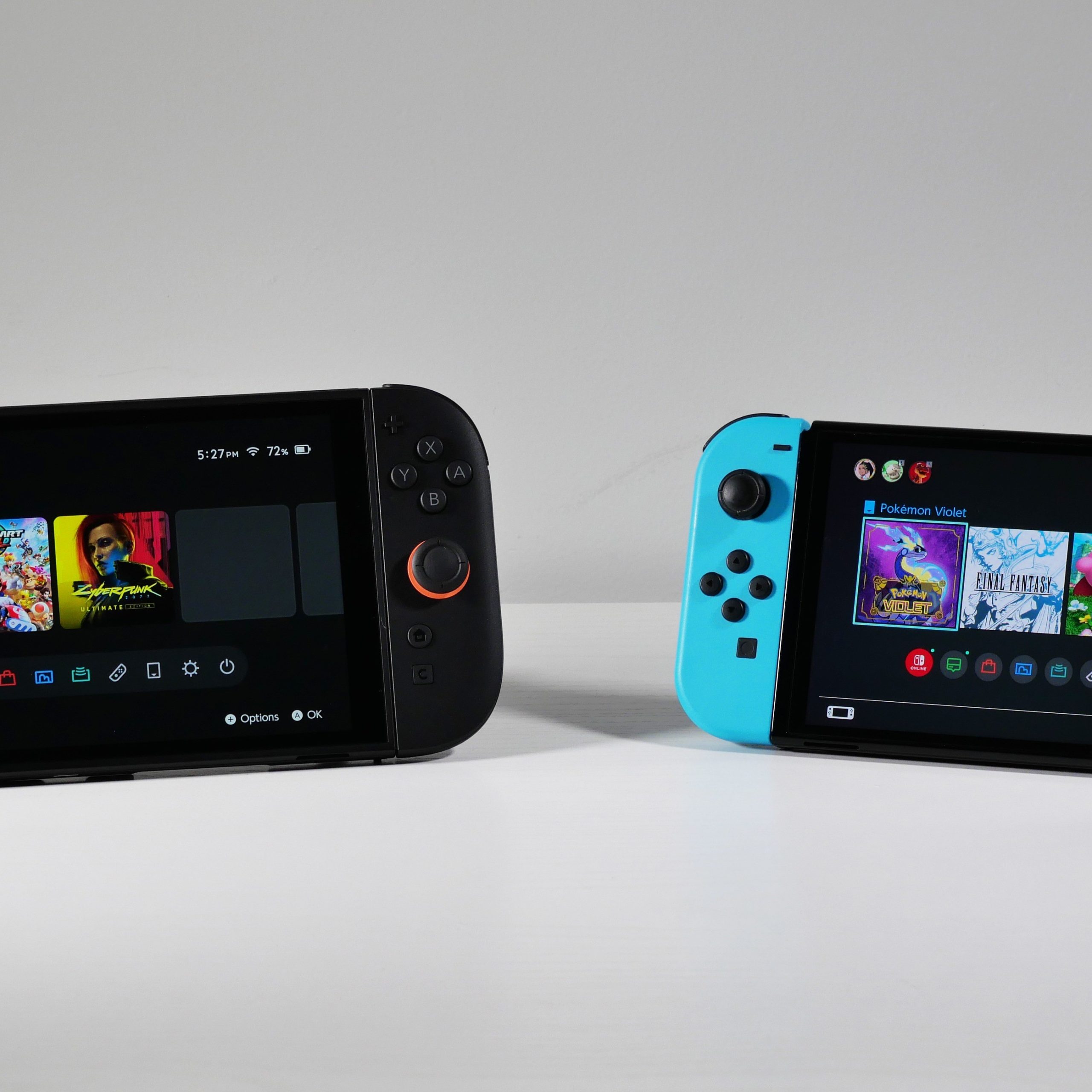
Some users prefer a larger screen. The Switch’s built-in display is only 6.2 inches. Watching action on a laptop gives more visibility. This helps during long sessions or complex games.
Content creation is another use. Reviewers, tutorial makers, and social media influencers need clear footage. Using a laptop ensures clean captures. They can edit with professional tools like OBS or Adobe Premiere.
Travelers sometimes try this too. If their TV isn’t available, they hope the laptop can act as a monitor. While it doesn’t work directly, a workaround exists.
Understanding these needs shows why this topic matters. It’s not just about convenience—it’s about performance.
What Equipment You Need for the Connection
Building the Right Setup Step by Step
You cannot connect a Nintendo Switch to a laptop using only a cable. Instead, you need specific hardware. First, get an HDMI capture card. This device receives video signals from the Switch. Then sends them to your laptop via USB.
Choose a reliable brand. Elgato HD60 S is popular. AVerMedia Live Gamer Mini also works well. Make sure it supports 1080p at 60fps. This matches the Switch’s docked output.
Next, get an HDMI cable. Use a standard male-to-male version. Plug one end into the Switch dock. Attach the other to the capture card’s input.
Your laptop needs a free USB port. Most capture cards use USB 3.0. Check that your computer recognizes external devices. Install drivers if needed.
The Switch must be in docked mode. Take it out of handheld mode. Insert it into the official dock. Power the dock with its AC adapter.
Finally, install streaming software. OBS Studio is free and powerful. It detects the capture card feed. Set it as your video source.
With all parts ready, you can finally learn how to connect Nintendo Switch to laptop successfully.
 Step-by-Step Instructions for Connecting the Devices
A Clear Guide Anyone Can Follow
Now that you have the gear, follow these steps. First, plug the capture card into your laptop. Wait for it to install drivers. Some cards work instantly. Others need manual setup.
Second, connect the HDMI cable to the back of the Switch dock. Then attach the other end to the “HDMI IN” port on the capture card. Do not confuse input with output.
Third, power on the dock. Insert the Switch tablet securely. Press the power button. The home screen should appear on your TV. But not yet on the laptop.
Fourth, open your streaming software. In OBS, go to “Sources.” Click the plus sign. Choose “Video Capture Device.” Select your capture card from the list.
Fifth, adjust settings. Set resolution to 1920×1080. Match the frame rate to 60 fps. Resize the preview window to fit your screen.
Sixth, test the image. You should now see your Switch screen on the laptop. If not, check connections. Restart the software if needed.
Seventh, turn off HDR if colors look wrong. Go to System Settings > TV Output > HDR Mode. Disable it. This fixes washed-out visuals.
Following these steps makes it possible to see how to connect Nintendo Switch to laptop clearly.
Troubleshooting Common Connection Problems
Fixing Issues That Prevent Success
Even with the right setup, problems happen. One common issue is no signal. The laptop screen stays black. First, check all cables. Ensure the HDMI is in the correct ports.
If the capture card light is red or blinking, it may not be powered. Some models need external power. Others draw from USB. Confirm compatibility with your laptop.
Another problem is lag or delay. Gameplay feels slow. To fix this, lower the resolution. Try 720p instead of 1080p. Close background apps on your laptop. Free up memory and CPU usage.
Audio issues occur too. You might hear sound from the TV but not the laptop. In OBS, check audio sources. Add desktop audio as a separate input. Adjust volume sliders.
Sometimes the Switch doesn’t recognize the dock. Remove the tablet and reinsert it. Clean the connector if dusty.
Driver conflicts can block recognition. Uninstall and reinstall the capture card software. Reboot your laptop after installing updates.
Green or distorted screens often mean HDR is on. Turn it off in the Switch menu. This restores normal color.
Patience helps. Test one change at a time. Keep notes on what works.
 Alternative Methods (That Usually Don’t Work)
Why Some Shortcuts Fail
Many people search for easier ways to figure out how to connect Nintendo Switch to laptop. They look for wireless options or direct USB links. Unfortunately, most don’t work.
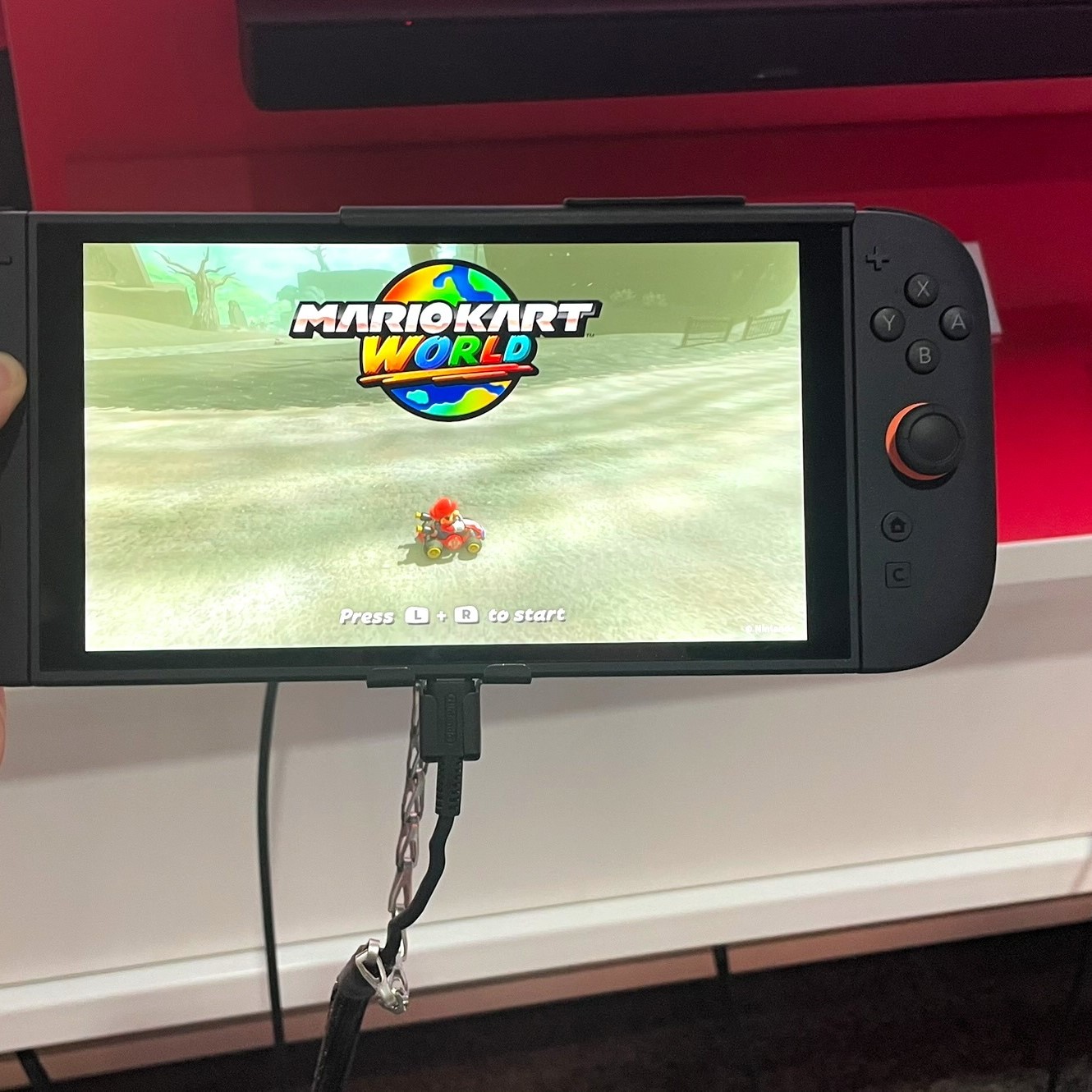
Using a USB-C cable fails. The Switch uses USB-C for charging and data. It does not send video that way. Plugging into a laptop only charges the system. No screen mirroring occurs.
Screen sharing apps like AirPlay or Miracast won’t help. The Switch lacks Wi-Fi Direct or Miracast support. It cannot broadcast wirelessly to laptops.
Remote Play is limited. Nintendo offers it for mobile devices. No official app exists for Windows or Mac. Third-party tools claim to mirror. These are often scams or malware.
Bluetooth pairing is useless here. It handles controllers and audio. It cannot transmit video.
Some think HDMI-in ports on gaming laptops will work. But almost no consumer laptop has HDMI input. Most only have HDMI-out. Assuming otherwise leads to frustration.
These myths spread online. Always verify information. Stick to proven methods. A capture card remains the only reliable solution.
Tips for Improving Streaming and Recording Quality
Getting the Best Visual Experience
Once you’ve learned how to connect Nintendo Switch to laptop, focus on quality. Start with lighting. Reduce glare on your laptop screen. Position it away from windows.
Use headphones or external speakers. Built-in laptop audio may pick up fan noise. A USB microphone improves voice clarity. Place it away from vibrating surfaces.
In OBS, set the base canvas to 1920×1080. Use a custom resolution if needed. Frame rate should match your game—usually 30 or 60 fps.
Enable V-Sync to reduce tearing. Lower bitrate if uploading to YouTube. 8,000 kbps is safe for 1080p. Higher values consume more bandwidth.
Add overlays like webcams or logos. Use PNG files with transparent backgrounds. Position them neatly around the gameplay.
Record locally even when streaming. This saves a backup file. You can re-upload if the stream fails.
Update firmware on your capture card. Manufacturers release performance fixes. Check their website regularly.
Small improvements add up. A clean, sharp stream attracts more viewers.
 Frequently Asked Questions (FAQ)
Common Concerns About the Connection Process
Can I play on my laptop without a capture card? No. There is no direct method. The Switch does not support screen mirroring to PCs.
Do I need a powerful laptop? Not extremely. But avoid very old models. At least 8GB RAM and a modern processor help.
Can I use my laptop as a monitor while playing? Only if you have a capture card. Otherwise, the Switch screen stays on the TV.
Is it safe for the Switch? Yes. Using a capture card does not harm the console. Many pros do it daily.
Does it work with Mac and Windows? Yes. Both support USB capture cards. Install compatible software like OBS.
Will I feel input lag? On the laptop screen, yes. But your TV shows real-time gameplay. Always look there when playing.
These answers clarify confusion. Knowing the truth prevents wasted time.
 Final Thoughts on How to Connect Nintendo Switch to Laptop
A Useful Skill for Modern Gamers
Learning how to connect Nintendo Switch to laptop takes effort. Yet, the benefits are real. You gain control over streaming, recording, and viewing.
While it’s not plug-and-play, the process is manageable. With a capture card and proper setup, success is guaranteed. More importantly, you future-proof your content.
Whether you’re a beginner or expert, this knowledge expands your options. Let your creativity grow with every connected session.