
If your Nintendo Switch is acting slow, frozen, or stuck on the startup screen, you may need to perform a factory reset. This process returns the device to its original settings. It removes all user data, games, accounts, and saved progress. While it should not be the first fix you try, knowing how to factory reset a switch can solve deep software issues. Many users face glitches after updates or app crashes. A full reset often restores normal function.
Moreover, this guide covers every type of Switch model. Whether you own the original Switch, the Switch Lite, or the OLED version, the steps are similar. Some differences exist in navigation. However, the core reset method works across devices. You’ll learn how to back up data first. Then, access system settings safely. Finally, complete the wipe without damaging hardware. Understanding how to factory reset a switch helps when selling, troubleshooting, or preparing for repairs. By following these instructions carefully, you regain control of your console. Let’s explore each step in detail.
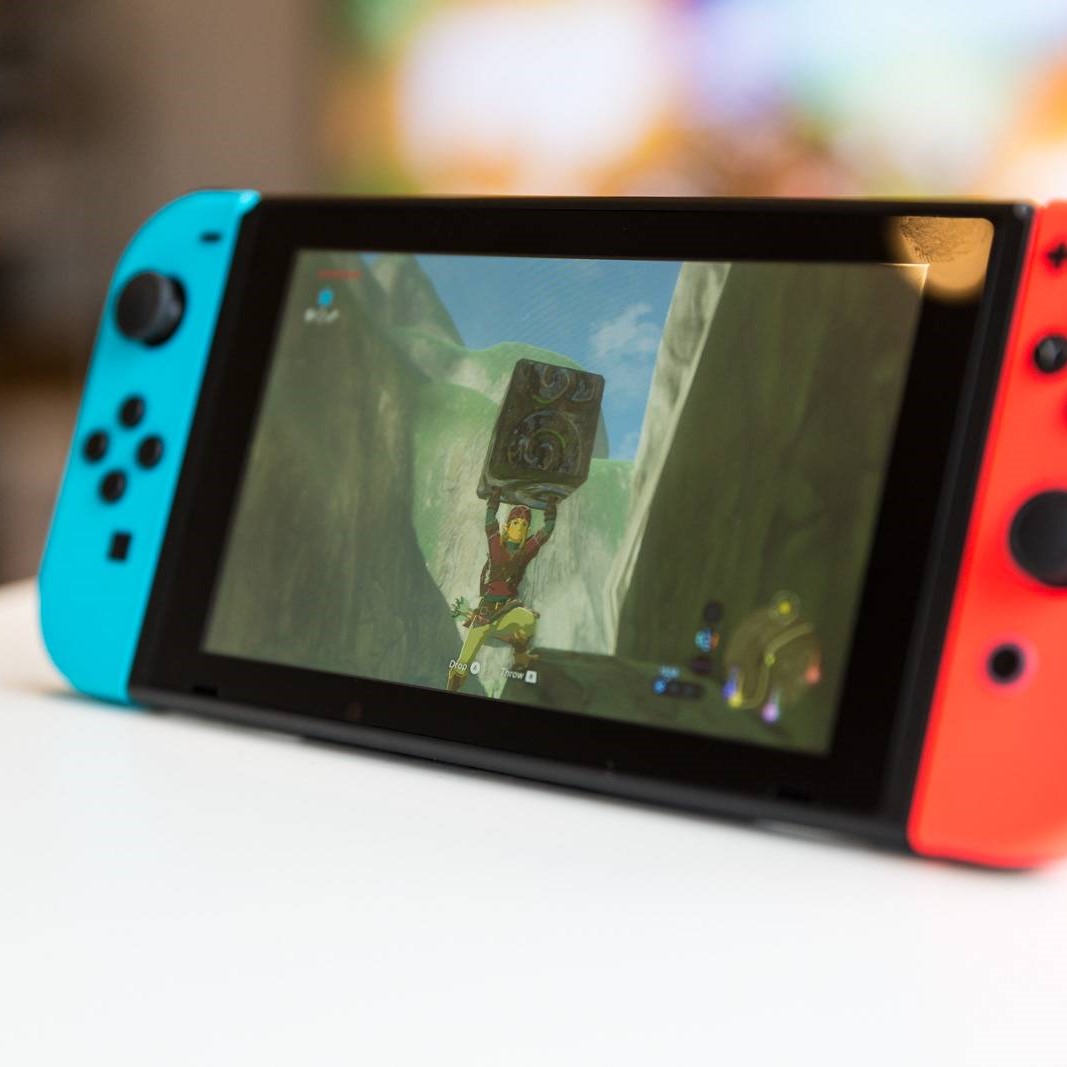 Why You Might Need to Factory Reset Your Switch
Fix Performance Issues and Prepare for Resale
There are several reasons to consider a factory reset. First, your Switch might run slowly. Apps take longer to open. Games freeze during play. Background processes may overload the system. Clearing everything gives it a fresh start.
Second, login problems can occur. If your Nintendo Account won’t connect, resetting can help. It removes corrupted network settings. Afterward, you can re-enter Wi-Fi details and sign in again.
Another reason is preparing to sell or gift your device. Personal data must be removed. A factory reset deletes profiles, friend lists, and purchase history. This protects your privacy. Buyers receive a clean console.
Sometimes, error codes appear. These include 2124–0165 or 2813–0001. They point to storage or software conflicts. When standard fixes fail, a reset resolves underlying issues.
You may also want to switch primary users. The primary account controls digital purchases. Resetting allows you to assign a new one.
However, this step erases everything. Always back up saves using Nintendo Switch Online cloud backup. Without it, game progress is lost.
Only use this option after trying simpler solutions. Restart the console. Check for updates. Clear cache from individual apps.
A factory reset should be your last troubleshooting move.
Preparing Before You Begin the Reset
Back Up Data and Charge Your Device Fully
Before starting how to factory reset a switch, prepare properly. First, ensure your Switch has enough battery. Plug it into the charger. Let it reach at least 70%. A sudden power loss during reset could damage the system.
Next, back up your save data. Go to System Settings > Data Management > Save Data Cloud Backup. Make sure auto-upload is enabled. Sync any unsaved progress. This only works if you have an active Nintendo Switch Online membership.
Also, write down important information. Note your email linked to the Nintendo Account. Record any redeemable codes. List downloaded games so you can redownload them later.
Disconnect any microSD cards. Remove them gently. Store them safely. After the reset, you can reinsert them. But they won’t work until reformatted.
Log out of services like YouTube or Hulu. Some apps require re-login after a wipe. Keep passwords ready.
Turn off parental controls. Write down the PIN. You will need it to set them up again.
Close all running software. Return to the home screen. Do not leave games open.
Ensure your internet connection is stable. You’ll need it after the reset to download updates.
Double-check that cloud saves are uploaded. Look for confirmation messages.
Once everything is ready, proceed with confidence.
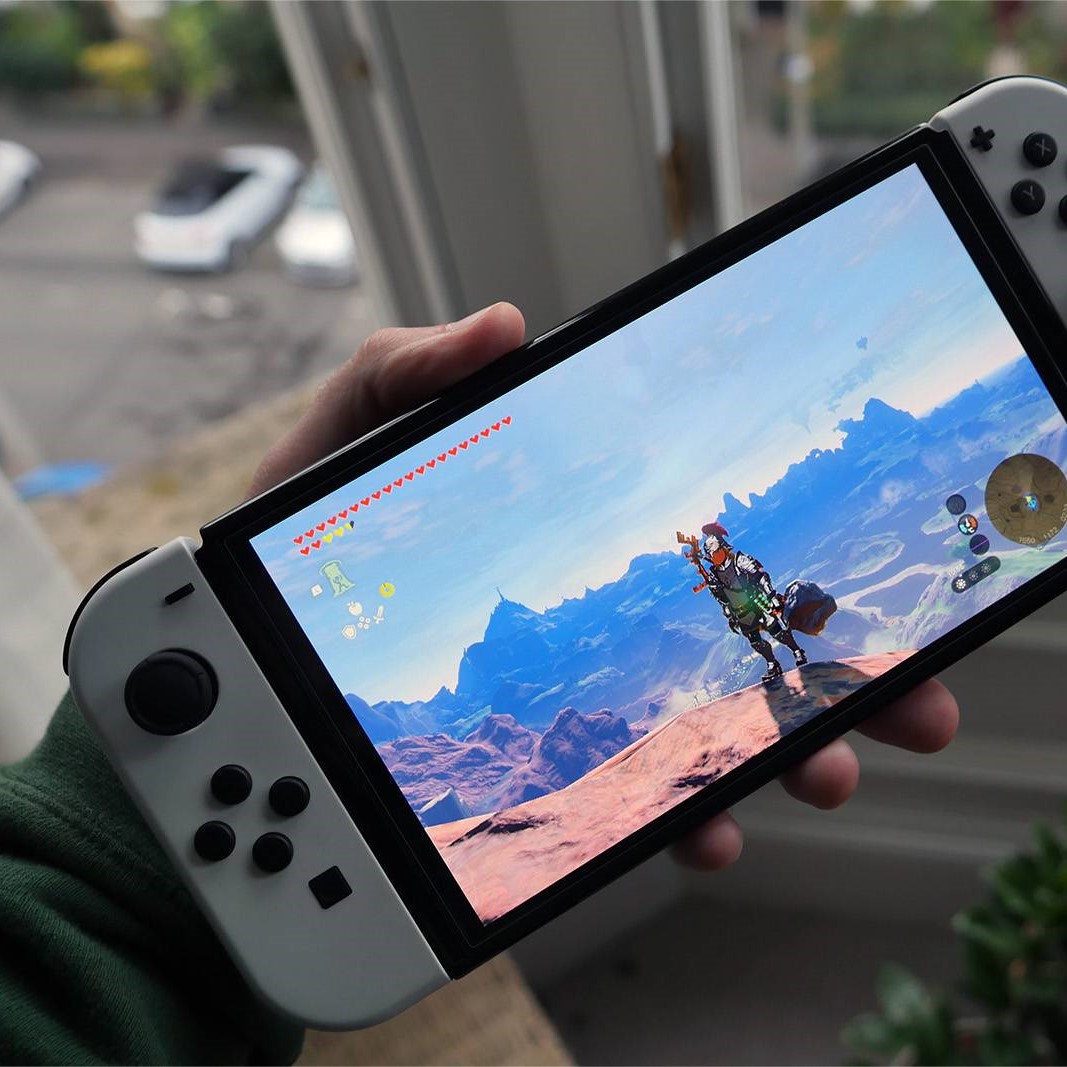 Step-by-Step Instructions for Performing the Reset
Access System Settings and Confirm the Wipe
Now, let’s go through how to factory reset a switch. Start by powering on your device. Wait for the home screen to load fully. Then, tap the gear icon to open System Settings.
Scroll down until you see “System.” Select it. At the bottom of that menu, find “Formatting Options.” Tap it. This section contains tools for resetting.
Choose “Restore Factory Settings.” A warning appears. It explains that all data will be erased. Read it carefully.
Then, select “Restore.” Another prompt asks if you want to delete user data only or everything including photos and videos. Choose based on your needs. Most users pick the full wipe.
Enter your Parental Controls PIN if prompted. This prevents accidental resets.
Wait as the system clears. This takes several minutes. The screen may go black. Do not press any buttons. Let it restart on its own.
When it powers back on, you’ll see the initial setup screens. Language, region, and Wi-Fi setup begin again.
Follow the prompts. Reconnect to the internet. Sign in with your Nintendo Account.
After logging in, check for system updates. Install them before downloading games.
Your console now runs like new.
This process works for all models.
Differences Between Original Switch, Lite, and OLED
Know What Changes Across Models
The method for how to factory reset a switch is nearly identical for all versions. However, there are slight differences in speed and interface layout. The original Switch and OLED model both support TV mode. Their internal storage ranges from 32GB to 64GB. Reset time is about 5–8 minutes.
The Switch Lite operates only in handheld mode. It has 32GB of storage. Its smaller size means faster processing in some tasks. The reset steps are the same. Yet, the absence of detachable Joy-Cons simplifies hardware checks.
OLED models have improved speakers and screen quality. After reset, you’ll notice better visuals right away. Still, no extra steps are needed during the wipe.
All models use the same system software. Updates apply uniformly. Therefore, post-reset setup feels familiar.
MicroSD card handling is consistent too. After reset, you must format the card again. Plug it in. Go to System Settings > Data Management > Formatting Tools > Format microSD Card.
Some users report faster boot times after reset on OLED units. This comes from cleaner memory management.
Battery life does not change due to reset. However, removing background apps can improve efficiency.
No matter which model you own, follow the same safe procedure.
Always confirm your device type before searching for video guides.
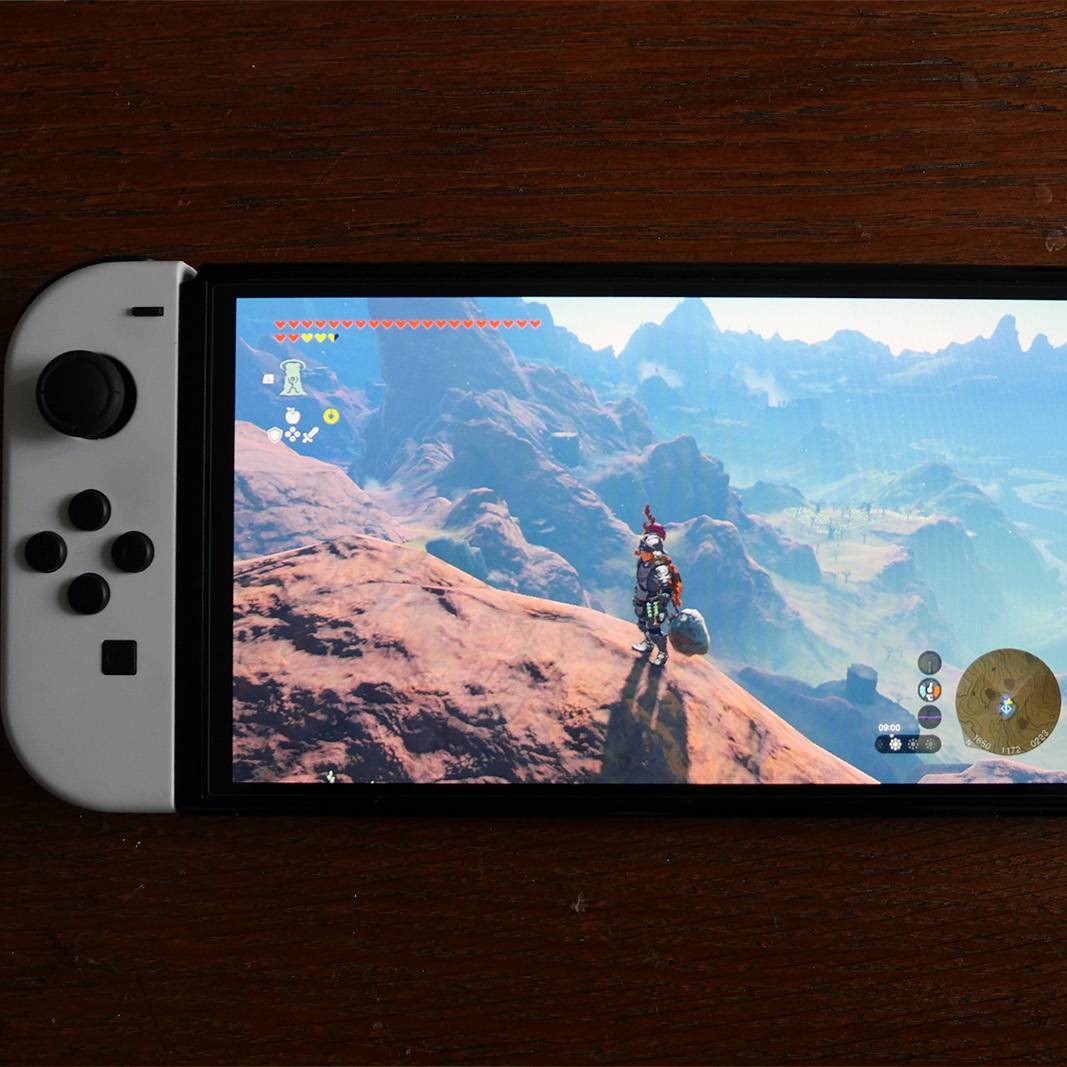 Troubleshooting Common Reset Problems
Fix Errors That Halt the Process
Even when following how to factory reset a switch, things can go wrong. One common issue is freezing on the logo screen. If this happens, hold the Power button for 15 seconds. Turn the device off. Wait 30 seconds. Power it back on. Try again.
Another problem is error code 2162-0002. It appears when Wi-Fi drops during reset. Move closer to your router. Use a wired LAN adapter if possible. Restart your modem.
If the system skips the confirmation screen, clear the cache. Hold Power + Volume Up for three seconds. Enter Recovery Mode. Choose “Clear NAND User Data Cache.” Then return to normal mode.
Sometimes, the reset starts but never finishes. The screen stays dark. In this case, force shutdown. Hold the Power button for 12 seconds. Wait two minutes. Restart normally.
If the console boots but shows corrupted data, reformat again. Ensure you selected “Restore Factory Settings,” not just “Delete Users.”
MicroSD errors may occur after reset. Insert the card. Let the system detect it. Choose to format when asked. Back up files elsewhere first.
For persistent issues, contact Nintendo Support. Provide your serial number. They can offer remote diagnostics.
Stay calm. Most problems have simple fixes.
Never open the device yourself. It voids the warranty.
Restoring Your Data After the Reset
Rebuild Your Console Experience Safely
After completing how to factory reset a switch, your device acts like new. Now, restore what you need. First, reconnect to Wi-Fi. Enter your password. Allow time for updates. Install the latest firmware.
Sign in with your Nintendo Account. Use the same email and password. If you forgot it, recover via the website.
Enable cloud save backup again. Go to System Settings > Data Management > Save Data Cloud Backup. Turn on auto-sync. Download existing saves.
Redownload games from your library. Visit the Nintendo eShop. Go to your account page. Select “Download List.” Find missing titles. Click to install.
Reinsert your microSD card. Format it when prompted. Copy game data back if needed.
Set up local users. Create profiles for family members. Assign parental controls.
Reinstall third-party apps. Open the eShop. Search for YouTube, Hulu, or Netflix. Download them again. Log in with your credentials.
Restore screenshots and videos if stored externally. Transfer from computer or cloud drive.
Sync controllers. Press the sync button on the side. Match them one by one.
Finally, test gameplay. Launch a game. Confirm performance is smooth.
It may take an hour to fully rebuild your setup.
Patience ensures long-term stability.
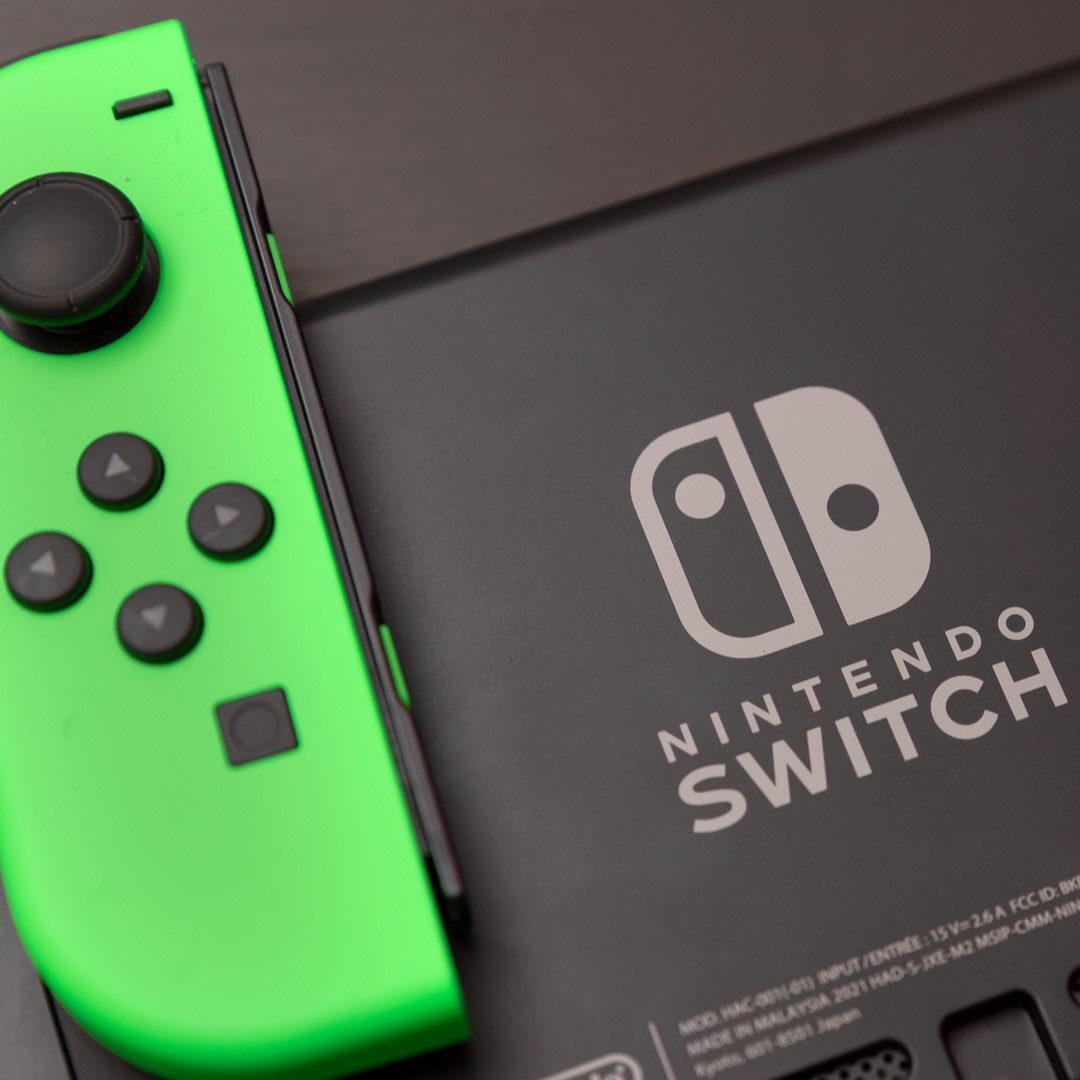 Frequently Asked Questions
Can I Undo a Factory Reset?
No. Once done, data is permanently deleted. Only cloud backups allow recovery. Never reset without saving first.
Will My Games Be Gone Forever?
No. Digital games stay linked to your account. Redownload them anytime. Physical cartridges work immediately.
Does a Factory Reset Remove Bans?
No. Hardware bans remain active. Only Nintendo can lift them. A reset does not hide device IDs.
Why Is My Switch Slow After Reset?
It may still be installing updates. Wait for background tasks to finish. Avoid opening apps too quickly.
Can I Reset Without Internet?
Yes. But you cannot back up saves. Also, future setup requires online activation. Connect if possible.
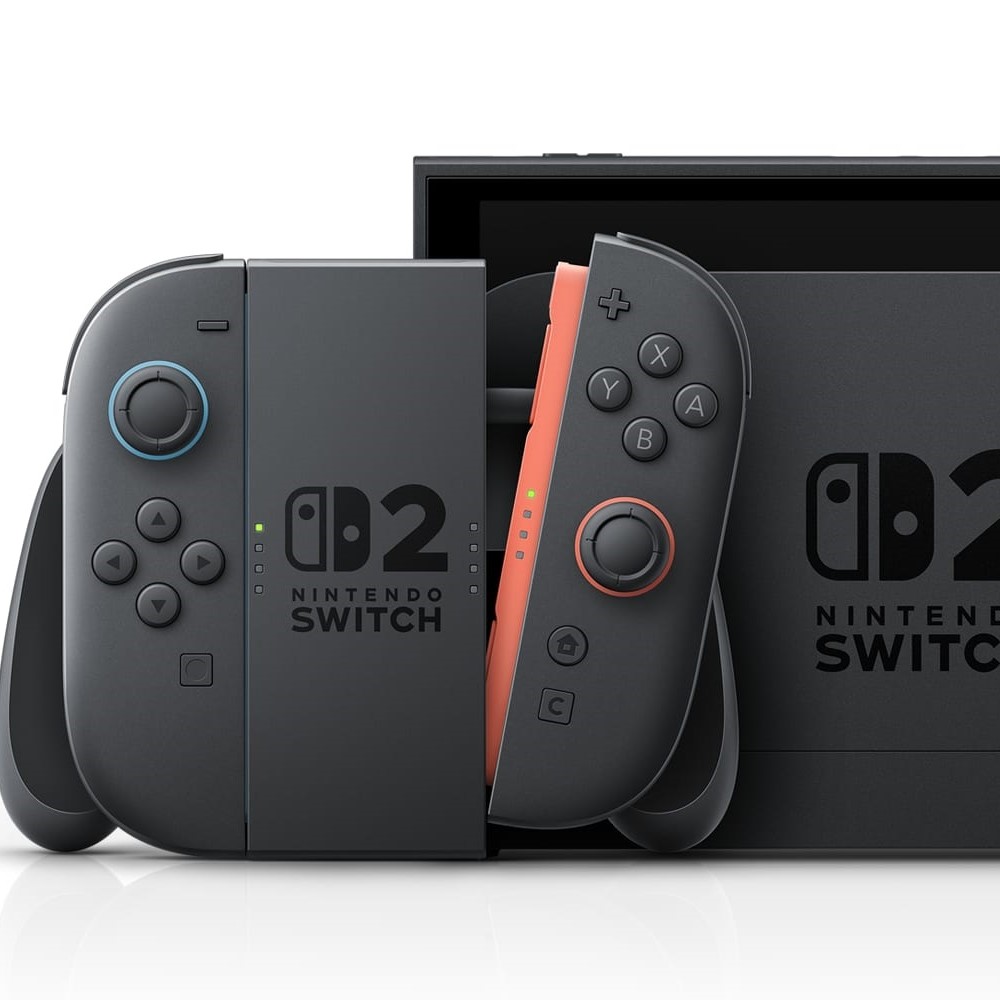 Final Thoughts on Knowing How to Factory Reset a Switch
Understanding how to factory reset a switch empowers you to fix serious issues. It’s a powerful tool when used correctly. From fixing lag to preparing for resale, it brings your console back to life.
More than just a quick fix, it teaches you about device maintenance. Regular care reduces the need for drastic steps. Use cloud saves. Update software. Restart weekly.
Whether you own the original model, Lite, or OLED, the process remains straightforward. Follow each step with care. Protect your data first. Then proceed with confidence.
A factory reset should never be feared. Instead, view it as a fresh start. With patience and knowledge, you keep your Switch running smoothly for years. Mastering how to factory reset a switch makes you a smarter, more capable user.