
If you’re a fan of Nintendo Switch games or simply enjoy the ergonomic design and responsive buttons of the Switch Pro Controller, you might want to use it on your PC. The good news is that learning how to connect Switch Pro controller to PC is easier than ever. With Bluetooth support on most modern computers and Steam’s built-in compatibility, this high-performance controller can enhance your gaming experience across a wide range of titles.
Modern PC gaming benefits from versatile hardware, and the Switch Pro Controller stands out for its comfort, precision, and long battery life. Whether you’re playing indie platformers, action-adventure games, or racing simulations, connecting your controller properly ensures smooth performance. In this guide, we’ll walk you through every method to successfully connect your Switch Pro controller to PC, troubleshoot common issues, and optimize settings for the best gameplay. By the end, you’ll know exactly how to connect Switch Pro controller to PC using multiple reliable approaches.
 Understanding Your Switch Pro Controller
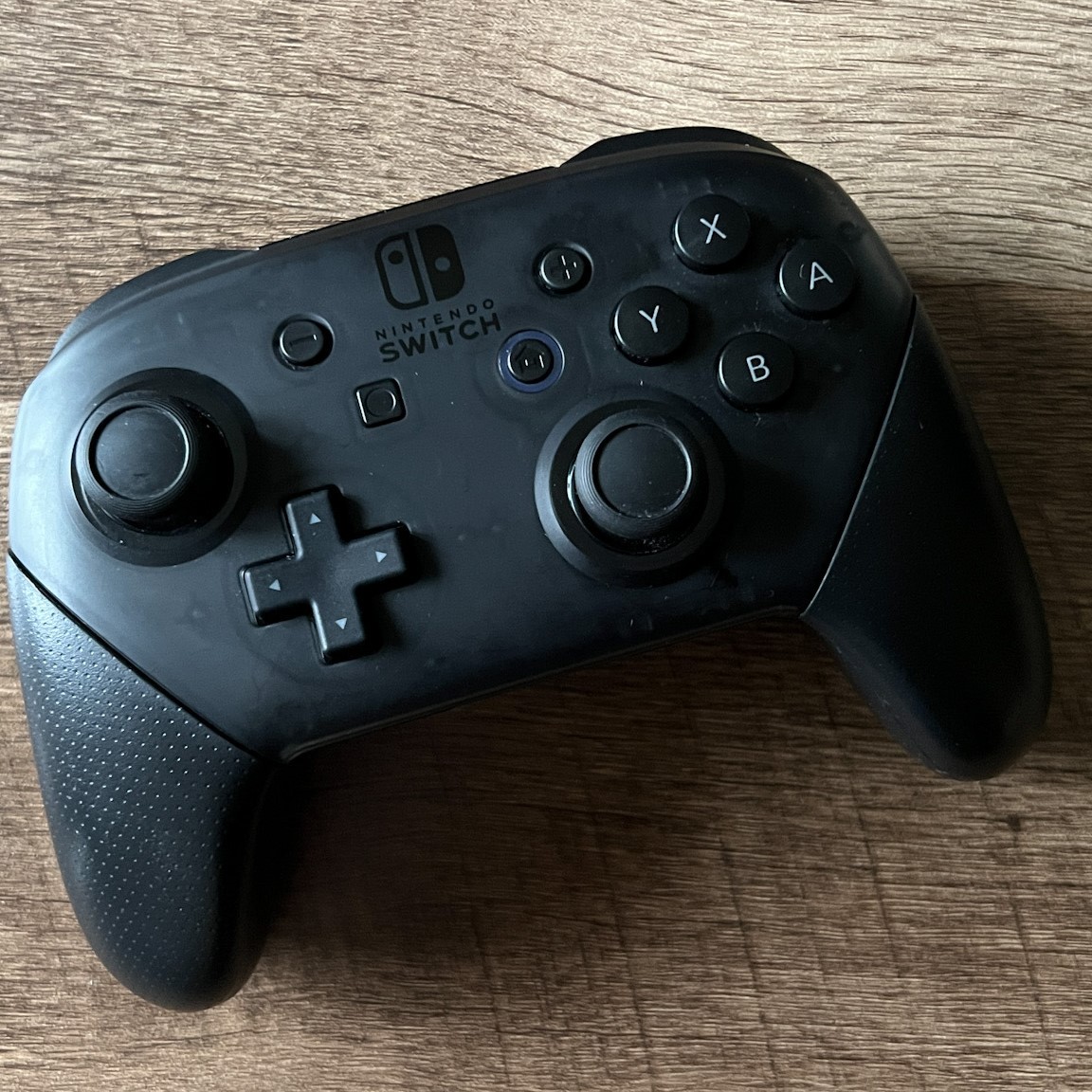
The Switch Pro Controller was designed for the Nintendo Switch console, but its features make it an excellent choice for PC gaming as well. It offers motion controls, HD rumble, an NFC reader for amiibo figures, and a battery life of up to 40 hours. These features give it an edge over many standard controllers when used with compatible software.
Additionally, the build quality is impressive. The textured grips, responsive analog sticks, and well-placed buttons make it comfortable for long gaming sessions. Because it supports both wired and wireless connections, you have flexibility in how you connect it to your PC. Most importantly, many PC games—especially those available on Steam—recognize the controller natively. This means once you learn how to connect Switch Pro controller to PC, setup is usually quick and intuitive. As a result, more players are choosing this device over traditional gamepads.
Preparing Your PC for Connection
Before attempting to connect your Switch Pro controller to PC, ensure your system meets the basic requirements. First, your computer must support Bluetooth 4.0 or higher if you plan to connect wirelessly. Many modern laptops come with built-in Bluetooth, but desktop users may need to install a USB Bluetooth adapter.
Next, update your Windows operating system. Outdated versions of Windows 10 or 11 can cause pairing issues. Then, go to Settings > Devices > Bluetooth & other devices and make sure Bluetooth is turned on. It’s also wise to close any unnecessary applications that might interfere with Bluetooth signals. Once these steps are complete, your PC will be ready to detect and pair with the controller. After preparation, the next step is entering pairing mode on the controller itself. This process is simple and essential for establishing a stable connection.
Entering Pairing Mode on the Controller
To begin the connection, you must first put the Switch Pro Controller into pairing mode. Locate the small Sync button on the top edge of the controller, near the USB-C port. Press and hold this button until the LED indicators start flashing rapidly. This blinking pattern shows the controller is discoverable by nearby devices.
Now, return to your PC’s Bluetooth settings. Click “Add Bluetooth or other device,” then select “Bluetooth” from the options. Your computer will begin searching for available devices. When “Pro Controller” appears in the list, click on it to initiate pairing. The process usually takes just a few seconds. Once connected, the top-left light on the controller will remain solid, indicating a successful link. If the lights continue blinking, try repeating the steps. Sometimes interference or low battery can prevent detection. Therefore, ensure the controller is charged before attempting to pair.
Connecting via Bluetooth: Step-by-Step
Connecting your Switch Pro controller to PC through Bluetooth is one of the most popular methods. Begin by ensuring both your PC’s Bluetooth is active and the controller is in pairing mode, as previously described. Then, follow the on-screen prompts when the device appears in your Bluetooth menu.
After selecting the controller, Windows may install necessary drivers automatically. This step happens in the background and usually completes within a minute. Once the installation finishes, the controller should be fully functional. You can test it by opening a game or using the Xbox controller test tool found in Ease of Access settings. If input is detected, the connection was successful. However, some games may not recognize the controller immediately. In such cases, restarting the game or rebooting the PC often helps. Overall, Bluetooth offers a clean, cable-free experience ideal for desktop and laptop setups.
 Using Steam for Enhanced Compatibility
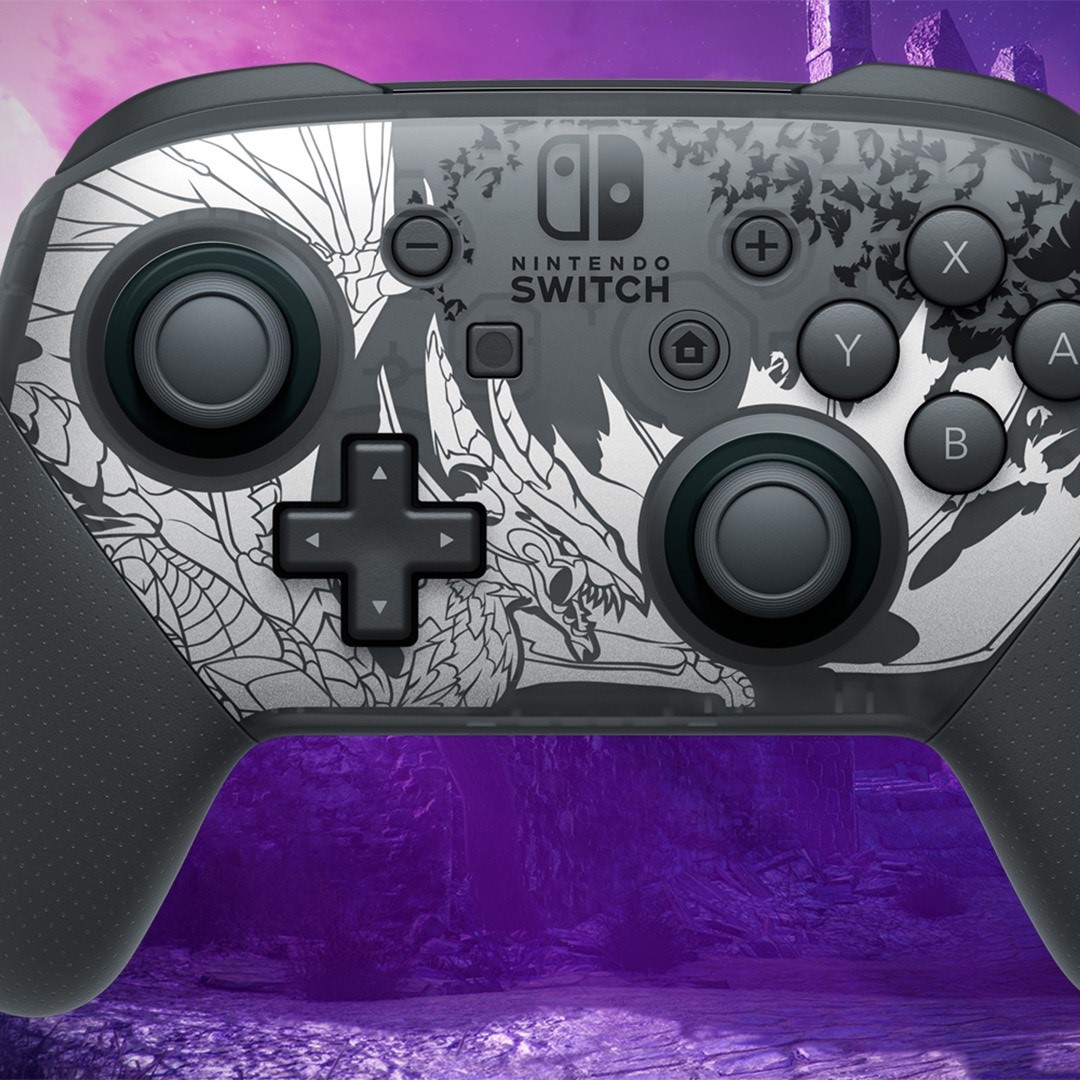
Steam provides excellent support for the Switch Pro Controller, often delivering better performance than standard Windows recognition. To use it through Steam, first launch the Steam client and go to Settings > Controller > General Controller Settings. Then, ensure “Enable Switch Pro Configuration Support” is checked.
Now, turn on your controller while Steam is running. The platform should detect it automatically and apply default button mappings. You can customize these mappings using Steam’s intuitive interface. For example, you can remap buttons, adjust sensitivity, or enable motion controls. Furthermore, Steam Input allows you to use the controller in games that don’t natively support it. This means even older or non-Steam titles can benefit from the Switch Pro’s features. As a result, many users prefer this method over direct Bluetooth pairing. It simply offers more control and flexibility during gameplay.
Wired Connection: Fast and Stable Option
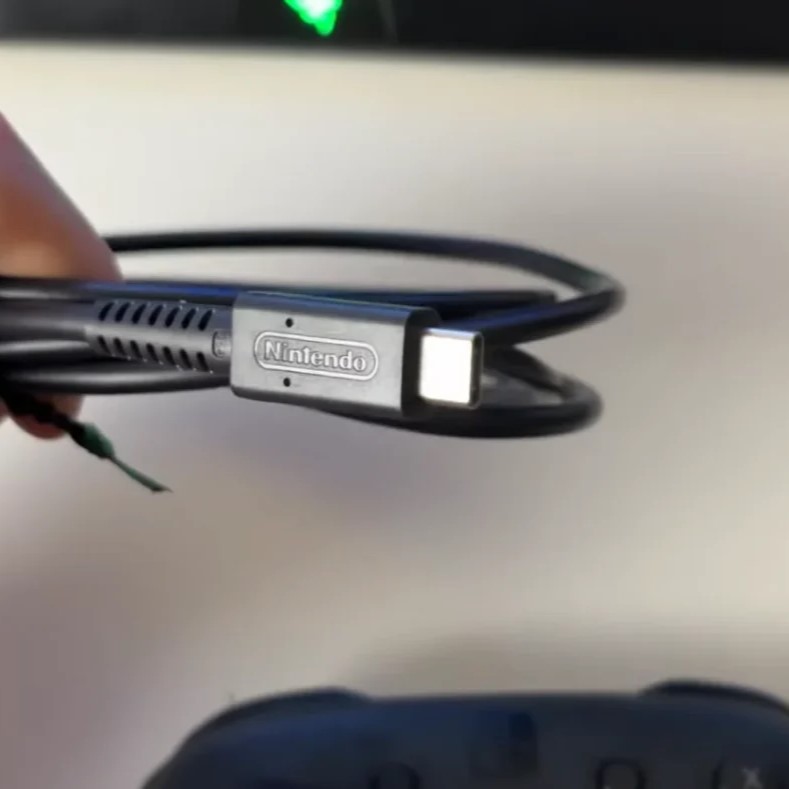
If you prefer a lag-free, always-ready connection, using a USB cable is an excellent alternative. To connect your Switch Pro controller to PC with a wired setup, use a standard USB-C to USB-A cable. Plug one end into the controller and the other into your computer’s USB port.
As soon as the connection is made, Windows will recognize the device and install drivers automatically. No additional pairing steps are needed. The main advantage of this method is stability. Unlike Bluetooth, which can occasionally drop or experience latency, a wired connection delivers consistent performance. It’s especially useful during competitive gaming or when using motion controls. Additionally, the controller charges while connected, so you never run out of power mid-session. While it limits mobility, the reliability makes this option ideal for many gamers who value responsiveness above all.
Troubleshooting Common Connection Issues
Even with careful setup, you might encounter problems when trying to connect your Switch Pro controller to PC. One common issue is the controller not appearing in the Bluetooth list. In this case, restart both the controller and your PC. Then, re-enter pairing mode and try again.
Another frequent problem is input lag or unresponsive buttons. First, check the battery level. A low charge can cause erratic behavior. Next, remove any previously paired devices from your PC’s Bluetooth menu. Multiple saved connections can interfere with recognition. Also, consider updating your Bluetooth drivers through Device Manager. Outdated drivers are a known cause of connectivity failures. If Steam isn’t detecting the controller, verify that controller support is enabled in settings. Finally, test the controller on another device to rule out hardware defects. These steps resolve most issues encountered during setup.
 Optimizing Controller Settings for Better Performance
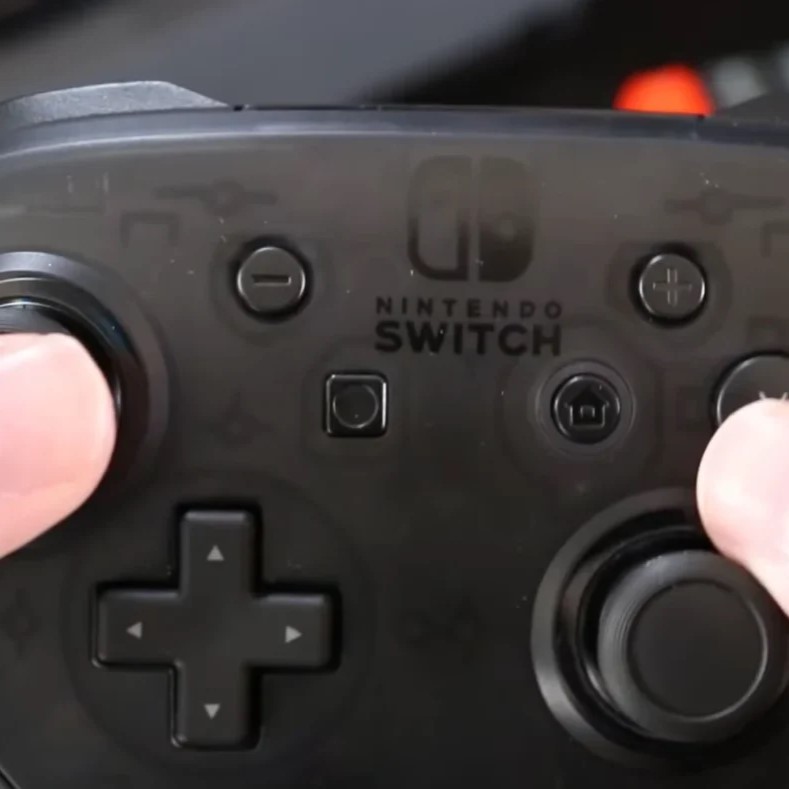
Once your Switch Pro controller is connected, fine-tuning settings can significantly improve your experience. In Windows, go to Bluetooth & Devices > Devices and select your controller. From here, you can check connection status, remove the device, or update drivers.
For deeper customization, use third-party tools like DS4Windows or InputMapper. These applications allow advanced configurations such as button remapping, sensitivity curves, and macro creation. You can even make the Switch Pro mimic an Xbox or PlayStation controller for broader game compatibility. Additionally, calibrate the analog sticks and triggers to reduce drift or over-sensitivity. Motion controls can also be adjusted if you’re using games that support them. Taking time to optimize settings ensures smoother gameplay and a more personalized feel across different genres.
 Frequently Asked Questions (FAQ)
Can I use the Switch Pro Controller on PC without Bluetooth?
Yes, you can use a USB cable to connect the controller directly. This wired method does not require Bluetooth and offers stable performance.
Does the Switch Pro Controller work with all PC games?
Not all games support it natively. However, Steam Input and third-party tools enable compatibility with most titles, including non-Steam games.
Why isn’t my PC detecting the controller?
Ensure Bluetooth is enabled, the controller is in pairing mode, and drivers are up to date. Try restarting both devices if detection fails.
Can I charge the controller while using it on PC?
Absolutely. Using a USB cable powers and charges the controller simultaneously, making it ideal for long sessions.
Is there input lag when using Bluetooth?
Generally, lag is minimal on modern systems. However, a wired connection provides the most responsive experience.
Do motion controls work on PC?
Yes, if the game supports motion input and you’re using Steam or compatible software, motion controls will function properly.
How long does the battery last during PC use?
Battery life ranges from 30 to 40 hours, depending on usage, vibration intensity, and connection type.
Can multiple Switch Pro Controllers be used at once?
Yes, Windows and Steam support multiple controllers, allowing local multiplayer with several Pro Controllers connected simultaneously.
 Summary
Connecting your Switch Pro controller to PC opens up a world of enhanced gameplay possibilities. Whether you choose a wireless Bluetooth connection or a reliable wired setup, the process is straightforward and well-supported by modern software platforms.
With Steam’s robust configuration tools and Windows’ native recognition, you can enjoy seamless integration across a vast library of games. By following the steps outlined in this guide, troubleshooting issues, and fine-tuning settings, you’ll maximize the potential of your controller. Ultimately, knowing how to connect Switch Pro controller to PC empowers you to play your favorite titles with precision and comfort. This versatile device proves that console-quality control is easily accessible on your computer.